Pika Watermark Removal: Free-Plan Logo, the Standard-Plan Trap, Clean Exports (2026)
Last updated: September 2026
A Pika watermark arrives in our processing queue attached to one of two stories. In the first, someone generated a clip on the free plan, loved the result, and the corner logo is baked into the only file they have. In the second, they paid for a subscription, downloaded the video again — and the badge is still there, because the plan they bought was the wrong one for clean exports.
That second story is the one almost nobody warns you about. Pika's watermark boundary sits on a different plan tier than most AI video platforms, and search results are full of advice that was already wrong when it was written. This guide sorts it out: what the mark is, which plan removes it, why paid exports still come back branded, and the cleanup path when the file in hand is already stamped. Every pricing fact was checked against Pika's own pricing page in September 2026.
What Is the Pika Watermark?
The Pika watermark is a corner logo stamped onto video exports from free accounts, plus an invisible C2PA provenance layer embedded in the MP4 container itself. The logo is a subscription gate you can plan your way out of; the provenance metadata travels with the file regardless of what you pay.
Two separate marks ride along with every Pika Labs export, and mixing them up is where most bad advice starts. The visible one is a semi-transparent Pika logo parked in a corner of the frame on free-tier exports — a vendor that maintains a Pika-specific remover describes it precisely: "Pika Labs stamps a corner logo on trial exports and embeds provenance in the MP4 wrapper from text and image prompts" — GPTCleanup. The invisible one is provenance metadata: a signed record inside the file container noting that the content is AI-generated.
The distinction matters because the two layers answer to different rules. The logo is a business gate — it converts free users into subscribers, and the right plan makes it vanish from future renders. Provenance is a compliance layer, part of the same push we covered for Sora's moving logo and Veo's corner stamp, and it survives whatever you pay. An export can shed the badge and still carry the manifest; a re-encoded copy can lose the manifest and keep the badge. Treating "the watermark" as one removable thing gets at least one of these wrong.
The visible mark is also the tractable one. A flat, static, corner-anchored graphic is the gentlest category in watermark detection — our explainer on watermark detection models covers why fixed logos cost detection models far less effort than moving or embedded marks.
Which Pika Plan Removes the Watermark?
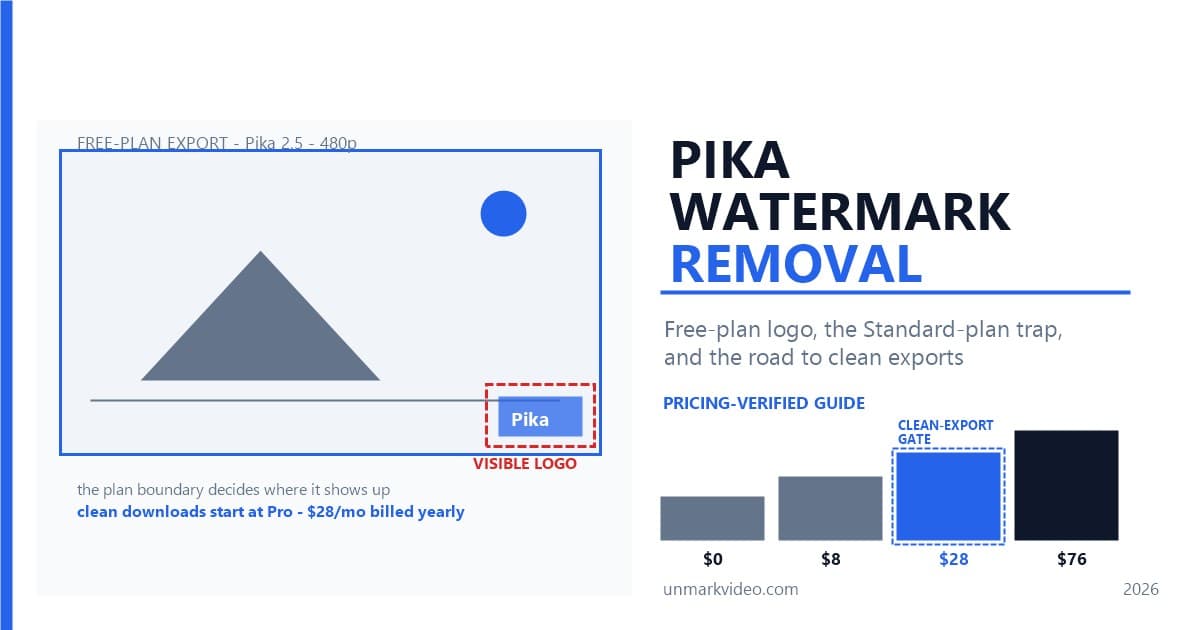
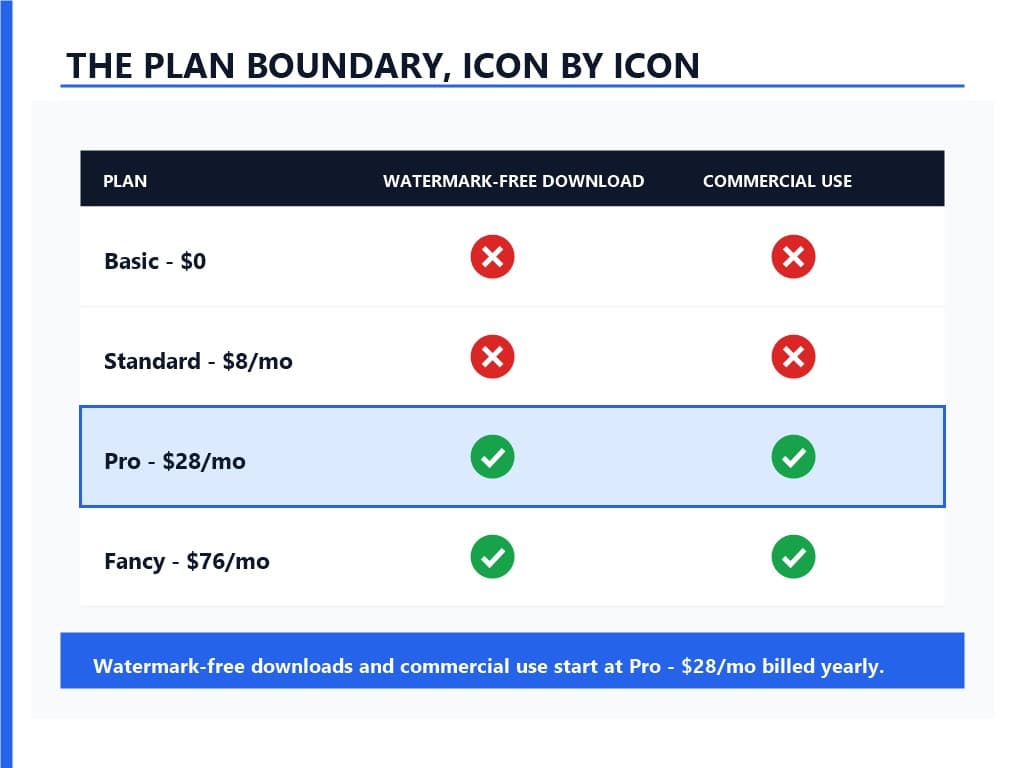
No free or $8 plan removes the Pika watermark. On Pika's own pricing matrix, watermark-free downloads and commercial use rights are both marked as not included on Basic and Standard, and Pro at $28 per month billed yearly is the first tier that includes them.
Here is the full ladder, read off Pika's pricing page in September 2026:
- Basic — $0 (yearly billing): 80 monthly credits, 480p output, image-to-video only, no rollover purchase. Watermark-free download: not included. Commercial use: not included.
- Standard — $8/mo: 700 monthly credits, every resolution, fast generations. Watermark-free download: not included. Commercial use: not included.
- Pro — $28/mo: 2,300 monthly credits, faster generations. Watermark-free download: included. Commercial use: included.
- Fancy — $76/mo: 6,000 monthly credits, fastest generations. Watermark-free download: included. Commercial use: included.
Month-to-month pricing runs higher — $10 for Standard, $35 for Pro, $95 for Fancy — and weekly billing exists at $8.99 and $14.99.
Two independent audits that read the pricing matrix icon-by-icon in August 2026 agree on the boundary. One put it plainly: "Pro is the first plan whose pricing matrix marks commercial use and watermark-free download as included" — Future Stack Reviews. The other framed the same finding as a buyer warning: "Pika's own subscription pricing matrix marks commercial use and watermark-free downloads as unavailable on the two cheapest paid states" — SaaSCRM Review.
Why does this section exist? Because plenty of competing articles — some ranking well — still claim the $8 Standard plan removes the logo, and one widely ranked comparison table was listing "Standard ~$8/mo — removes watermark + grants commercial use" as late as June 2026. That was never true of the current matrix, and the stakes go beyond trivia: Standard is a genuine upgrade (700 credits instead of 80, every resolution instead of 480p, faster generations), so buyers who upgrade for the wrong reason discover the badge is still there and assume the paid route is broken. They stopped one tier short.
One more boundary before you pick: direct share links keep the branding on every tier, Pro included — more on that trap below.
Why Is Your Pika Video Still Watermarked After Paying?
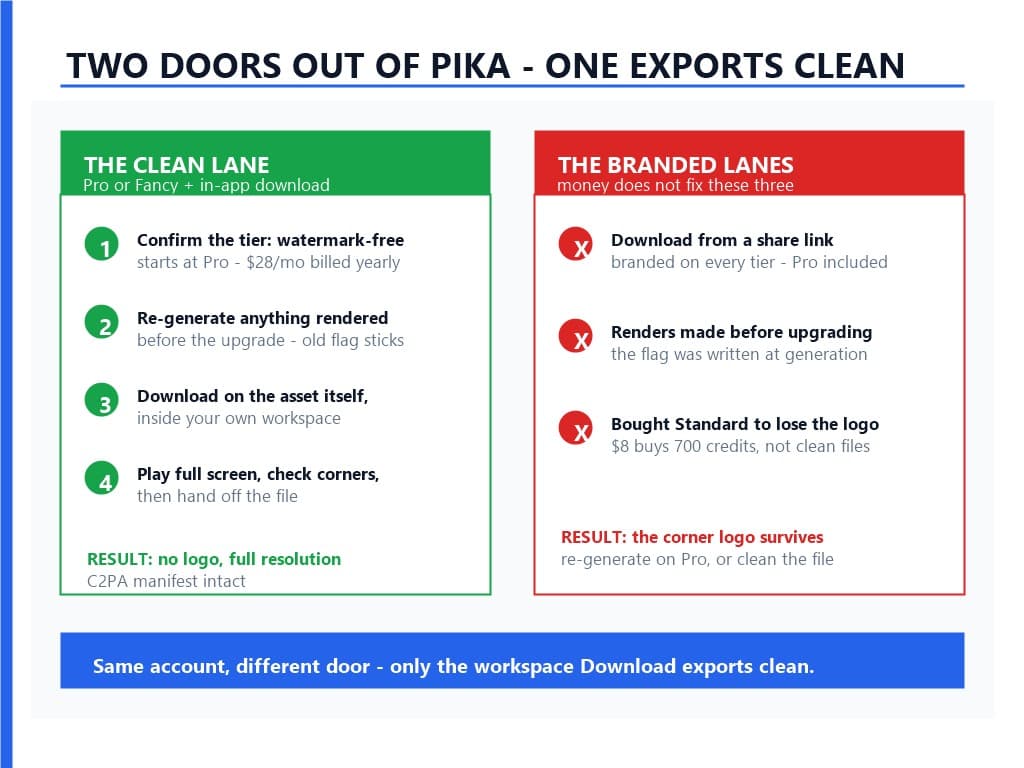
Three situations brand a Pika export even after money changed hands: the subscription is Standard, which does not include watermark-free downloads; the clip was generated before the upgrade, because the watermark flag attaches at generation time; or the file came through a share link, which carries the logo on every tier including Pro.
Trap 1: you bought Standard. This is the Pika-specific version of a paid-but-branded export, and it's the most common. The fix is either upgrading to Pro ($28 yearly, $35 monthly) or accepting that clean downloads are not part of what $8 buys and routing existing files through cleanup instead.
Trap 2: the render predates the upgrade. The watermark decision attaches when the clip is generated, not when it is downloaded. Upgrade today and everything rendered while the account was free stays branded, because the flag was written into those files at creation. The mechanic is documented across AI video platforms — the same Runway export traps include a grandfathered-asset case, and files of exactly this shape reach our processing queue regularly. The routes out: re-generate the prompt on the paid plan, or clean the existing file.
Trap 3: the file came from a share link. Pika's share pages serve branded video to whoever opens them, account owner included. Downloading from a shared link hands you the branded preview path even on Pro. Open the asset inside your own workspace and download there instead.
None of these traps are subtle once you know they exist. Each is visible in advance — on the pricing page or in the share URL — before money or credits are spent.
How Do You Export Pika Videos Without the Watermark?
The clean path needs three things aligned: a Pro or Fancy subscription, a generation created while that subscription was active, and a download made inside the Pika app rather than from a shared link. Miss any one of the three and the logo rides along.
- Confirm the plan boundary. Watermark-free downloads and commercial use rights start at Pro — $28 per month billed yearly, $35 month-to-month, or $14.99 weekly. Fancy at $76 adds credits, not rights.
- Re-generate anything rendered pre-upgrade. Old renders keep their flag. Budget the regeneration in credits: a five-second Pika 2.5 generation costs 12 credits at 480p, 20 at 720p, and 40 at 1080p — ten-second versions double that. Pro's 2,300 monthly credits cover roughly 57 five-second 1080p generations.
- Download inside the app. Use the download control on the asset itself in your own workspace — not the share page, not a browser right-click save of the preview player.
- Verify before you close the tab. Play the file full screen and check the corners. Confirm the resolution matches the plan: free tops out at 480p, and every paid tier generates at 720p and 1080p.
Two credits details worth internalizing. Included credits reset every month — an unused allowance doesn't bank; only purchased rollover carries forward, and Basic can't buy any. Generation costs also swing hard by feature: Pikaframes, the scene-extension pipeline that stretches a sequence to 25 seconds, runs from 12 credits for five seconds at 480p up to 200 for 25 seconds at 1080p, while Pikaffects transformations run 15 credits for image-to-video and 18 for video-to-video at five seconds. Check the table before you commit a month's allowance to one ambitious generation.
How Do You Remove the Pika Logo From an Existing File?
When regenerating is not an option — the prompt and seed produced a keeper — targeted AI inpainting rebuilds the corner region the logo occupies and leaves the rest of the frame untouched. A static corner logo is the easiest watermark category to detect and the cheapest to remove cleanly.
Inpainting is the reconstruction technique that rebuilds covered pixels from surrounding context instead of painting over them or cutting them away. The workflow runs detection, mask, rebuild: the detector finds the badge's exact region across every frame — it stays anchored in one corner and never changes shape — the mask isolates that region, and the rebuild regenerates the pixels behind it. Everything outside the mask passes through untouched, motion and grain included, which is what separates a targeted removal from a full re-encode. We compared the three approaches — AI inpainting versus cropping versus blurring — and the full pipeline is documented in our processing walkthrough.
Pika's logo sits on the friendly end of the difficulty spectrum: static, corner-anchored, semi-transparent, usually over sky, scenery, or clean backgrounds the model reconstructs easily. In our testing, the only cases that ask for a second pass are badges parked over high-frequency detail — foliage, confetti, rippling water — where the rebuilt texture needs a slightly wider mask to blend. Upload the file to UnMark's processing page, and the corner is detected, masked, and rebuilt while the rest of the render stays exactly as generated:
Do Free Pika Watermark Remover Tools Work?
They work, with caveats worth pricing in advance. Browser tools blur, pixelate, or crop the corner — fine for a casual post, lossy for client work — and metadata strippers may also remove the C2PA record that disclosure workflows depend on. For polished footage, targeted inpainting keeps quality and leaves provenance intact.
Three tool families circulate around this problem. The first runs entirely in your browser: drop the file in, drag a box over the mark, pick blur, pixelate, or crop. Nothing uploads, it's free, and for a story post the result is fine. The cost is quality — blur leaves a smudged patch where the corner used to be, and crop reframes the whole shot, which can break a 9:16 or 16:9 deliverable. The second family uploads your footage to a server; convenient, but you're shipping unreleased material to a third party, which not every client contract allows. The third goes after the container, stripping C2PA metadata and provenance records from the MP4 wrapper. That's a different job with a different tradeoff — wiping provenance so AI footage looks human-made is exactly what disclosure laws are starting to penalize, so treat those tools as a last resort with a compliance conversation attached.
The practical ranking, for what it costs you: crop is the bluntest, blur is the fastest, inpainting is the one that hands back a file nobody can tell was edited. If the clip matters beyond this week's post, skip the first two.
What About the C2PA Metadata in Pika Files?
Pika Labs MP4 exports carry C2PA provenance metadata — a signed record inside the container stating the clip is AI-generated, alongside model and timestamp information. It is invisible in playback, separate from the corner logo, and the layer our pipeline deliberately preserves while cleaning the visible mark.
Provenance is the verifiable record of where a piece of media came from and how it was made, stored inside the file rather than beside it. The C2PA standard gives that record a shared, signed format, and AI video platforms have been folding it into exports since 2024 — our SynthID versus C2PA comparison covers how the visible and invisible layers relate across the industry. Detector tooling built for Pika files also reports invisible pixel-level watermark signals where present — treat the container manifest as the documented layer, not necessarily the only one.
The regulatory backdrop moved recently too: California's AB 853 took effect on August 2, 2026, adding provenance-disclosure obligations for AI-generated media. The practical workflow point survives all of it unchanged — remove the logo your audience shouldn't be distracted by, keep the manifest your compliance may need. A targeted corner cleanup that leaves the container untouched delivers exactly that combination. Stripping provenance is its own legal question, separate from badge removal, and our legal guide to AI video watermarks takes it up in full.
Is It Legal to Remove the Pika Watermark?
For a clip you generated from your own prompt, cleaning the logo is routine asset work — the serious legal exposure lives elsewhere. Pika's free tier licenses output for non-commercial use only, so commercial projects need Pro or Fancy anyway, and removing attribution marks from someone else's footage sits under DMCA §1202.
Start with the terms, because they shape what the badge means in each direction. Free-tier output is licensed for personal, non-commercial use — consistent with the logo being glued to it; the mark and the license say the same thing. The tiers that include commercial use rights are the same ones that include watermark-free downloads, so the licensing boundary and the branding boundary land on the same rung. One further clause matters before building on the free lane: Pika's FAQ states that account videos are not fully private — anything generated after November 29, 2024 can be selected for the Templates page — which doesn't change the watermark answer but matters for anything confidential.
For your own renders, the position our legal coverage takes across this series holds: cleaning a logo from footage you generated, on a plan whose terms entitle you to clean output, is asset maintenance. The exposure sits with attribution and deception — removing copyright management information from work that isn't yours is what DMCA §1202 penalizes, and stripping provenance to pass AI output off as human-made is what AB 853 targets. One footnote: under Thaler v. Perlmutter, purely AI-generated work can't be registered for copyright — human direction on top is what builds registrable authorship.
What Are Common Pika Watermark Problems and Fixes?
Four diagnostics cover most support requests: credits exhausted before the month ends, a 480p ceiling on the free tier, old renders that stayed branded after an upgrade, and a smudged corner after a sloppy removal. Each has a short fix, and none requires re-shooting anything.
Credits ran out mid-month. The free 80 credits go fast at modern costs — six five-second 480p generations if you stick to text-to-video, fewer once Pikaffects or Pikadditions enter the picture. Included credits don't carry over; if you're mid-project, wait for the reset or buy rollover credits on a paid plan.
The export looks soft. That's the resolution ceiling, not a watermark bug. Basic generates at 480p only, and image-to-video only; every resolution unlocks from Standard upward. No remover fixes source resolution — regenerate at 1080p or upscale in post.
Upgraded, but old clips are still branded. Expected behavior — the flag rode with the render. Re-generate the prompt on the paid plan, or clean the existing files; a folder of pre-upgrade renders can go through the batch workflow in one session, since identical corner logos share one mask.
The corner looks smudged after removal. The mask was too tight for a busy background, or the file went through a lossy re-encode after cleaning. Retry with the mask expanded a few pixels, and keep the cleaned master at its original resolution — the detection-model overview explains why high-frequency textures cost more reconstruction effort.
Conclusion
The Pika watermark is two systems wearing one name, and the plan boundary between them surprises people in a way the Runway and Sora versions don't. The free plan stamps every export. Standard — the tier most guides point to — does not remove it. Pro at $28 per month is the first tier whose matrix includes watermark-free downloads and commercial use, and even then the file only comes out clean if it was generated on the paid plan and downloaded inside the app rather than through a share link. Files that are already stamped come clean through targeted inpainting that rebuilds the corner and leaves the C2PA manifest intact.
The decision sequence in one line: check the tier before you pay, download from the workspace not the share page, verify corners before delivery, and route the stragglers through a targeted removal instead of a blur box. That's the pipeline we run at UnMark every day — if you'd rather not hand-tune masks, upload the file and let the detector do the corner work.
References
- Pika — Subscription Pricing (plan matrix, watermark-free and commercial use rows, credit cost tables)
- Pika — Terms of Service (personal, non-commercial use clause and plan-based licensing)
- SaaSCRM Review — Pika Art Review 2026: Pricing, Features, Pros, Cons (pricing matrix verified August 17, 2026)
- Future Stack Reviews — Pika Pricing 2026: Standard vs Pro for Commercial Use (icon-state audit, August 2026)
- GPTCleanup — Pika Watermark Remover (corner logo and MP4 provenance analysis)
- AI Wiki — Pika 2.5 (company background, funding history, model timeline)
FAQ
Q1: Does the Pika watermark go away if I upgrade?
For generations made after the upgrade on Pro or Fancy, yes. For clips rendered while the account was free, no — the branding was written into those files at generation time, so they need re-generation or post-processing. Standard never includes watermark-free downloads.
Q2: Which Pika plan removes the watermark?
Pro, at $28 per month billed yearly ($35 month-to-month, $14.99 weekly). Pika's pricing matrix marks watermark-free downloads and commercial use as not included on Basic and Standard, and included on Pro and Fancy ($76).
Q3: Can I remove the Pika watermark for free?
Not inside Pika — there's no toggle on the free plan. Browser tools blur or crop the corner at no cost, with visible quality loss; targeted AI inpainting is the route that keeps the rest of the frame untouched.
Q4: How many videos can the Pika free plan make?
The free tier includes 80 monthly credits, and a five-second 480p text-to-video generation costs 12 — about six clips per month before any rerolls, with Pikaffects at 15 credits each draining it faster.
Q5: Is it legal to remove the Pika logo from my own video?
For your own generation, on a plan whose terms entitle you to clean output, it's routine asset work. The legal risk sits with removing attribution from other people's footage (DMCA §1202) or stripping provenance to dodge AI-disclosure rules.
Last updated: September 2026