Agency Video Watermark Removal: The Client Handoff Guide
Mark Ma
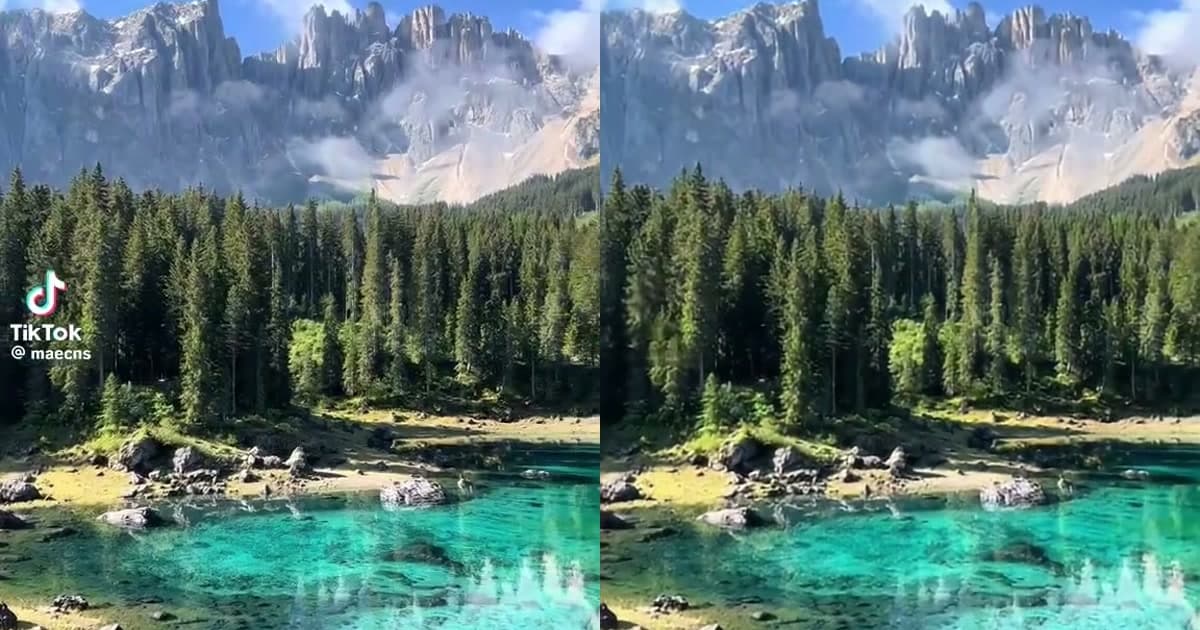
Last month I watched a creator spend an entire Saturday cleaning watermarks off 34 TikTok clips, one at a time, in a desktop editor. Upload, mask, export, repeat. By clip 19 she was guessing at mask positions. By clip 30 she was exporting the wrong frames. Batch video watermark removal exists precisely so that never happens to you: instead of processing files one by one, you queue a whole group of videos, the AI detects and removes the watermark in every one of them, and you get back a folder of clean clips in a single run.
This guide walks through the full workflow I use and have tested myself — preparing your files, uploading a batch, and verifying the output — with real timing numbers from my own runs in 2026.
Last updated: August 2026
Batch video watermark removal is the process of submitting multiple watermarked videos to an AI system in a single job so that every file gets its watermark detected, removed, and re-encoded without manual per-file work. You upload the group once, the system queues each video, applies inpainting frame by frame, and returns one clean output per input.
The core technology underneath is AI inpainting. AI inpainting is a reconstruction technique where a model analyzes the pixels surrounding a masked region and synthesizes plausible replacement content for every frame. Unlike cropping, it keeps your original framing; unlike blurring, it leaves no visible patch.
Single-file removal tools have been around for years. What changed in 2026 is scale: cloud GPU clusters now let a browser-based service process up to 20 files simultaneously, which turns a weekend chore into a 30-minute background task.
Batch processing matters because the volume of short-form video creators must publish in 2026 makes one-at-a-time editing mathematically impossible to sustain. The 2026 Creator Economy Report found that 89% of successful creators maintain a presence on 3 or more platforms, and each platform expects a steady weekly cadence — 5-10 posts per week on TikTok, 4-7 on YouTube Shorts, 4-6 on Instagram Reels.
Do the arithmetic. Three platforms at modest cadence means 15-20 videos per week. If each clip carries a platform watermark that takes 3-5 minutes to remove manually, that is an hour of pure mask-drawing every single week — before any actual editing.
"Multi-platform presence is essential, with 89% of successful creators maintaining 3+ platforms, but content must be optimized for each platform — not just cross-posted." — Marketeze, The 2026 Creator Economy Report
There is also a reach incentive. Instagram has publicly stated it deprioritizes Reels that carry visible watermarks from other apps, so a watermarked cross-post can quietly cap your distribution. Cleaning watermarks in bulk is not cosmetic work; it directly affects how far the content travels. Our breakdown of why cropping fails on Instagram Reels watermarks covers the platform-side detection in detail.
And the pressure is real. Industry surveys in 2026 put creator burnout from content volume at around 45%, with sustainable output estimates of 10-30 posts per week across platforms. Batching every repeatable task — recording, clipping, and watermark cleanup — is how the creators I talk to stay under that line.
You need three things before a batch run: source files in a supported format, a realistic count of what you are queuing, and a decision about which watermark regions matter. Skipping any of these is the most common reason a batch comes back wrong.
First, formats. The service accepts MP4 and MOV input, and MP4 with H.264 or H.265 codec gives the most reliable results. If your clips came off a phone camera roll they are almost certainly already MP4. If you have MKV or AVI files, convert them first — a batch job cannot rescue an unsupported container.
Second, resolution. Files up to 1080p Full HD (1920×1080) process at full quality on paid plans; the free tier caps at 720p HD. Check your batch before uploading, because a single 4K file in the queue will either be rejected or downscaled depending on the plan.
Third, know your watermarks. A batch can mix sources — TikTok clips with the bouncing logo, Reels with the corner glyph, even screen recordings with a static overlay. But you should glance through the files first, because unusual watermark positions (dead center, or covering a face) are the cases where results need a human eye. If your source is TikTok specifically, our real test results on TikTok's moving watermark show exactly what to expect frame by frame.
Preparation is ten minutes of boring work that prevents ninety minutes of re-runs. Gather every clip you plan to process into one folder, named so you can match input to output later — I use YYYYMMDD-platform-NN.mp4.
Then run a quick triage pass:
One habit worth adopting: keep the original watermarked files. Batch removal is non-destructive to your source — the service writes new output files — but if you ever need to re-run a clip with different settings, the original is your only clean starting point.
If your clips still live on the platform rather than on disk, download them first. Our guide to repurposing TikTok videos for Instagram Reels covers the download-and-clean pipeline end to end.
Open UnMark and drag the whole folder into the upload area. Batch upload accepts up to 20 files simultaneously, which is the practical ceiling for one run — if you have 40 clips, split them into two queues rather than trying to force one oversized job.
Each file becomes its own task in the queue, and processing starts automatically. The system runs on GPU clusters in the cloud, so there is nothing to install and your machine is free while the job runs. A typical 1-minute 1080p video processes in 2-5 minutes; with GPU acceleration, a 10-minute video finishes in about 3 minutes. Because tasks run concurrently rather than serially, a batch of 20 short clips does not take 20 times as long as one clip.
Credits are what pay for the compute. Roughly 1 credit processes about 1 minute of standard 1080p video, so a batch of 20 one-minute clips costs around 20 credits. You can watch the balance on the pricing page before you commit a large queue — checking cost up front beats discovering it mid-run.
When the queue empties, download the outputs as a group and do a spot check before you use any of them. I never trust a batch blindly. My routine: open every file, scrub to three points (start, middle, end), and freeze on the region where the watermark used to sit.
For each clip, check three things:
Anything that fails goes back into a second, smaller batch or gets re-masked. In practice, the failure rate in my batches runs below 1 in 10, and the failures are almost always the clips I flagged in triage as having odd watermark positions.
A batch rarely contains one watermark type, and the AI handles each type differently. Understanding the three patterns helps you predict which clips will come out clean on the first pass.
Static corner watermarks — a logo fixed in one spot — are the easiest case. The model sees the same masked region in every frame, so it has maximum context for reconstruction. These come out clean almost every time.
Moving watermarks — TikTok's bouncing username is the classic example — are harder because the masked region changes position across frames. The model must track the watermark and reconstruct a different background region at each position. Our process walkthrough shows how detection and reconstruction chain together for exactly this case.
Semi-transparent overlays — text with partial opacity over changing backgrounds — sit in between. The AI must separate the blended text from the background before reconstructing. Results are usually good but this is the type I always spot-check twice.
If your batch mixes all three, sort your expectations accordingly: static first-pass success is near-certain, moving watermarks occasionally need a second pass, and translucent overlays are the ones to eyeball. For the underlying method comparison, see AI inpainting vs cropping vs blurring.
The honest answer from my own runs: a 20-file batch of one-minute 1080p clips finishes in roughly 10-15 minutes of wall-clock time, because the files process concurrently on the GPU cluster rather than one after another. Serial processing of the same batch would take 40-100 minutes by the 2-5 minutes-per-video rule.
Three variables move that number. Resolution matters — 720p files run faster than 1080p. Watermark complexity matters — moving watermarks add reconstruction work per frame. And queue load matters — priority processing on paid plans jumps the line when the cluster is busy.
The workflow implication is the part people miss: batch removal is a background task, not an active one. You upload, walk away, and review. The creators I know who do this weekly schedule the batch alongside another task — coffee, email, a walk — and the clean clips are waiting when they get back.
Most batch failures fall into four buckets, and each has a fix that takes under a minute.
One file fails the format check. The whole batch does not fail — only the offending task errors out. Convert the stray MKV or AVI to MP4 with H.264 and re-queue just that file.
Output looks soft or downscaled. You are probably on a plan capped below the source resolution. A 1080p source on the free tier comes back at 720p. Check your plan limits before blaming the AI.
Residual ghosting where the watermark sat. This clusters around semi-transparent overlays and high-motion backgrounds. Re-run the affected clip once; if it persists, that clip is a candidate for manual touch-up rather than a second identical attempt.
The batch is slower than expected. Large files dominate a queue. Split long videos from short ones so the short clips are not stuck behind a 10-minute file, and check whether your plan includes priority processing.
One more thing worth saying plainly: only process content you have the right to edit. Removing watermarks from your own clips for repurposing is a normal creator workflow; stripping attribution from someone else's work raises real legal questions under DMCA Section 1202. Our 2026 legal guide to removing watermarks from AI videos draws the line carefully.
Verification is a 30-second-per-clip routine, not a frame-by-frame audit. Freeze the video where the watermark used to sit and look at the reconstructed region at full size — on a phone screen, artifacts that vanish on a desktop monitor will still show up in the feed.
My checklist per clip:
For a batch destined for ads or brand work, raise the bar: check every clip rather than a sample, because ad platforms reject watermarked creative and a single missed glyph wastes the whole campaign. Teams running that workflow pair batch removal with the approval process in our UGC creator workflow guide.
Batch video watermark removal turns the most tedious task in multi-platform publishing into a background job: prepare your files, upload up to 20 at once, spot-check the outputs. The math is what sells it — 15-20 clips a week across three platforms is unsustainable one file at a time, and a concurrent queue on UnMark's GPU cluster clears the whole week's cleanup in one sitting while preserving 1080p quality.
Start small if you are new to this: queue five clips, run the spot-check routine, and scale to a full 20-file batch once the results earn your trust. Your Saturday will thank you.
Q1: How many videos can I process in one batch?
Up to 20 files simultaneously. If you have more than 20 clips, split them into multiple queues — oversized jobs are harder to review and slower to recover if one file misbehaves.
Q2: Does batch processing reduce output quality?
No. Each file is processed individually at up to 1080p Full HD on paid plans (720p on the free tier). The batch only changes how many files run concurrently, not how each one is reconstructed.
Q3: Can a batch mix TikTok, Reels, and other watermark types?
Yes. Static, moving, and semi-transparent watermarks can share one queue. Expect near-certain results on static logos and spot-check the moving and translucent cases twice.
Q4: How much does a batch cost?
Roughly 1 credit per minute of 1080p video, so a batch of 20 one-minute clips costs about 20 credits. Check your balance on the pricing page before queuing large jobs.
Q5: Is batch watermark removal legal?
For your own content, yes — it is a standard repurposing workflow. Removing attribution from content you do not own can violate DMCA Section 1202 and platform terms, so keep batches limited to material you have rights to.
Mark Ma is the founder and lead engineer at UnMark, where he leads the development of AI-powered video watermark removal technology. With over a decade of experience in computer vision, deep learning, and video processing, he has built production systems that process millions of frames per month across TikTok, Instagram Reels, and Google Veo content. His technical work focuses on motion-compensated watermark detection, spatial-temporal inpainting, and quality-preserving reconstruction for short-form vertical video. Before UnMark, Mark shipped computer vision infrastructure at scale for content moderation and ad compliance platforms. He writes this blog to document the real engineering, testing, and regulatory reasoning behind UnMark's processing pipeline — every test result, frame analysis, and benchmark published here is reproduced from actual production data, not synthetic examples. His goal is to give creators, brands, and regulators a verifiable technical reference for AI video watermark removal in 2026.