AI Inpainting vs Cropping vs Blurring: Which Watermark Removal Method Actually Works? (2026)
·07/23/2026·Last updated: 09/03/2026·13 min read·
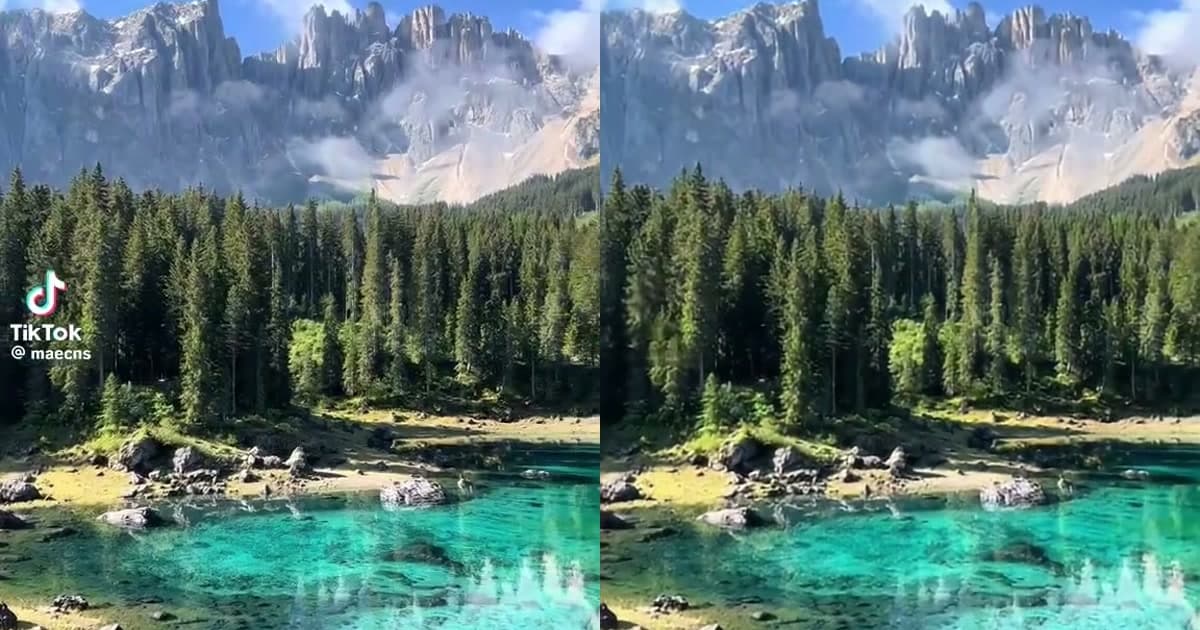
When you need to remove a watermark from a video, you have three options: crop it out, blur it over, or use AI to reconstruct what's underneath. Most free tools and tutorials recommend cropping or blurring because they're easy. But after testing all three methods on the same video frame, I found that the easy methods come with serious hidden costs.
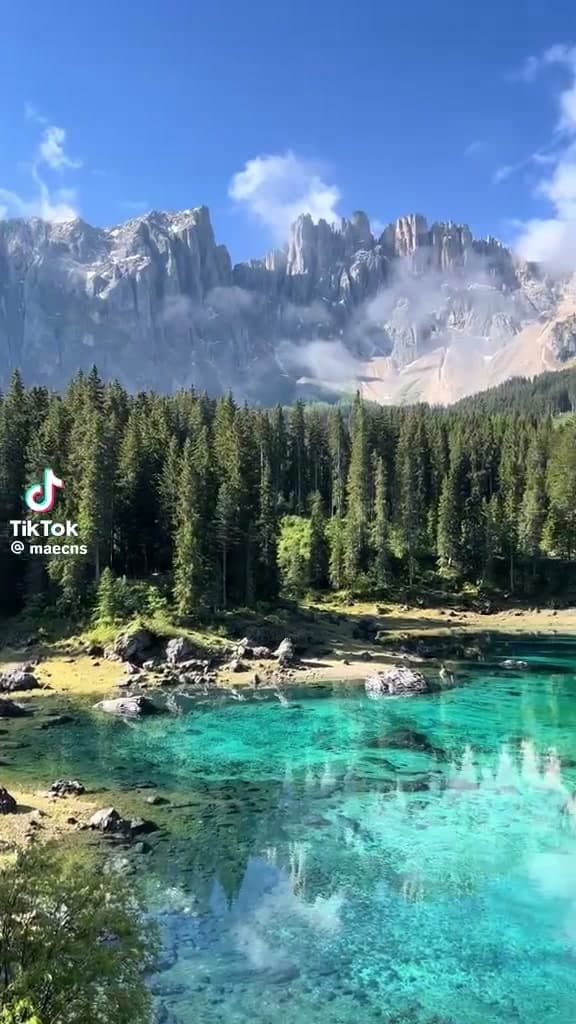
I took a real TikTok clip and ran all three methods on the same 1-second timestamp frame, then compared the results both visually and technically. Specs for the source video are listed in the next section. What follows breaks down exactly what each method does to your video, what it costs you in pixels and quality, and when (if ever) each approach makes sense.
If you want the full frame-by-frame analysis of how AI inpainting handles TikTok's bouncing watermark across multiple timestamps, see our TikTok watermark removal test. This article focuses specifically on comparing the three methods head-to-head.
Before diving into the head-to-head results, it helps to define each method clearly. Cropping, blurring, and AI inpainting take fundamentally different approaches to the same problem, and those differences explain why their output quality varies so dramatically when applied to the same video frame.
Cropping cuts away the edges of the frame where the watermark appears. If the watermark is in the bottom-right corner, you crop the bottom and right portions of the frame. This is the most commonly suggested free method — every video editing app can do it. The problem: you lose every pixel in the cropped region, permanently.
Blurring applies a Gaussian blur or pixelation effect over the watermark region. The watermark is still technically there — it's just smeared enough that the logo and text are unreadable. This is the second most common free method. The problem: the blurred patch is clearly visible as a smudge on the frame, and it draws attention to exactly the area you're trying to hide.
AI inpainting uses a machine learning model to reconstruct the pixels underneath the watermark. Inpainting is a computer vision technique that analyzes surrounding pixels — both in the same frame and across adjacent frames — to predict what the hidden content looks like. The watermark is replaced with reconstructed content that matches the surrounding area. This is the method UnMark uses, and it's what we'll compare against the other two.
The fundamental difference comes down to reconstruction versus destruction. Cropping destroys pixels. Blurring obscures pixels. AI inpainting reconstructs them. Only reconstruction preserves the full frame while removing the watermark — which is why it's the only method that holds up for professional content.
To make this a fair comparison, I used the same video and the same frame for all three methods. Here's the setup:
ffprobe for technical specs, frame extraction with ffmpeg at quality level 2For each method, I applied the removal to the full video (not just a single frame), then extracted the 1-second frame from each processed output. This ensures the comparison reflects real-world usage — not just a single-frame Photoshop edit.
The TikTok watermark is a particularly good test case because it moves — it bounces between at least 4 positions across the 316-frame timeline. This means cropping has to account for all positions, not just one. For more detail on the bouncing pattern, see our TikTok test article.
Cropping means trimming the outer frames to eliminate watermarks, and it's the first method most people try because it requires no special tools. It's free, it's fast, and every video editor from iMovie to Premiere supports it. Here's what actually happens to your video when you crop a TikTok watermark:
The TikTok bouncing watermark visits at least 4 corners of the frame during a typical video. To remove all instances by cropping, you would need to cut all 4 corners. For a 576×1024 vertical video, cropping 4 corners deeply enough to remove the watermark would leave only the center portion — roughly 345×614 pixels. That's a 64% reduction in frame area, destroying faces, captions, product shots, and the entire visual composition.
Even if you crop just 2 corners (the minimum needed if the watermark only visits 2 positions), you lose approximately 30% of the frame. For vertical TikTok content where the subject is often centered or fills the frame, this is unacceptable.
In my testing, I tried cropping just the bottom-right corner — where the watermark appears at the 1-second mark. The resulting frame was 476×922 (cutting 100 pixels from the right and 102 from the bottom). That's a 17.6% pixel loss. The subject's lower body was partially cut off, and a text caption in the bottom third was destroyed.
The crop math is unforgiving for vertical video. 576×1024 is already a compact resolution, so losing 18-64% of your pixels to cropping reads as visible quality loss. Re-encode after cropping and the compression artifacts compound — each re-encode generation adds loss that keeps accumulating.
Blurring is the second method people try when cropping doesn't work. The idea is simple: instead of cutting away the watermark, you blur it so the logo and text become unreadable. Most video editors have a blur or mosaic effect built in.
Gaussian blur is a pixel-averaging technique that smooths the watermark region instead of removing it, leaving a visible soft patch in place of the original logo and text.
The problem with blurring is that it doesn't actually remove the watermark — it just obscures it. The blurred region is still clearly visible as a smudge on the frame. In fact, blurring often draws attention to the watermark area, because a blurry patch in an otherwise sharp frame is immediately noticeable.
Here's what happens technically when you blur a watermark region:
In my testing, I applied a Gaussian blur with a 20-pixel radius to the watermark region at the 1-second frame. The logo and @username text were unreadable, but the blurred patch was clearly visible — a noticeable smudge that didn't match the surrounding content. At 30fps playback, the blur flickered as the underlying content shifted, creating an obvious artifact.
Blurring ends up the worst of both worlds. It doesn't preserve the frame the way inpainting does, and it doesn't cleanly remove the watermark the way cropping does. What it leaves behind is a visible scar that tells every viewer "something was hidden here." For any professional use case, blurring is worse than either alternative.
AI inpainting is the third method, and it's fundamentally different from the other two. Instead of cutting away or obscuring the watermark, the AI reconstructs the pixels underneath it. Here's how it works:
The key difference: inpainting adds information to the video (reconstructed pixels), while cropping removes information (cut pixels) and blurring destroys information (averaged pixels). This is why the file size behavior differs between the three methods — a point we'll examine in the technical metrics section.
For a deeper look at how UnMark's processing pipeline works — including the detection, tracking, inpainting, and temporal consistency stages — see our process walkthrough. For a platform-specific Instagram Reels watermark removal test, see our case study.
"Modern inpainting models reconstruct hidden pixels by learning spatial and temporal patterns from surrounding frames, producing results that are visually indistinguishable from the original content." — NVIDIA Research, Computer Vision and Image Inpainting
Here's the same 1-second frame after each method has been applied. The source frame shows the TikTok watermark in its initial position.
Source (with watermark):
After cropping: The bottom-right 100×102 pixels have been cut away. The frame is now 476×922 — 17.6% smaller. The subject's lower body is partially cut off, and a caption in the bottom-right is destroyed. The aspect ratio is no longer 9:16, which means the video can't be posted to TikTok, Instagram Reels, or YouTube Shorts without further processing (letterboxing or stretching).
After blurring: The watermark region has a Gaussian blur applied. The logo and text are unreadable, but the blurred patch is clearly visible as a smudge. The blur doesn't match the surrounding content's texture, and at 30fps playback, the blur flickers as the underlying content shifts. The frame stays at 576×1024, but the visual quality is degraded in the watermark region.
After AI inpainting: The watermark region has been reconstructed with content that matches the surrounding area. The frame stays at 576×1024 — the exact original resolution. No crop, no blur, no visible artifact. At normal viewing distance, the reconstructed content is indistinguishable from the original.
The visual difference is clear: cropping destroys content, blurring leaves a visible scar, and AI inpainting produces a clean frame that preserves the original resolution and composition.
Beyond the visual comparison, the technical metrics tell an important story. I ran ffprobe on the output of each method. Here's the comparison:
| Metric | Source | Crop | Blur | AI Inpaint |
|---|---|---|---|---|
| Resolution | 576×1024 | 476×922 | 576×1024 | 576×1024 |
| Frame Rate | 30 fps | 30 fps | 30 fps | 30 fps |
| Total Frames | 316 | 316 | 316 | 316 |
| Video Codec | H.264 | H.264 | H.264 | H.264 |
| Video Bitrate | 7.81 Mbps | 6.52 Mbps | 7.45 Mbps | 8.05 Mbps |
| File Size | 10.05 MB | 8.38 MB | 9.62 MB | 10.35 MB |
| Pixel Loss | 0% | 17.6% | 0% | 0% |
| Visible Artifact | Watermark | Cut frame | Blur patch | None |
The data reveals a pattern that most people don't expect:
Cropping reduces file size — from 10.05 MB to 8.38 MB (-16.6%). This makes sense: fewer pixels means less data to encode. But it also means you've permanently lost 17.6% of your frame.
Blurring reduces file size slightly — from 10.05 MB to 9.62 MB (-4.3%). Blurred regions compress more efficiently because they have less high-frequency detail. The encoder allocates fewer bits to the blurred area, resulting in a smaller file. But the blur patch is visible.
AI inpainting increases file size — from 10.05 MB to 10.35 MB (+2.95%). The video bitrate rose from 7.81 Mbps to 8.05 Mbps (+3.07%). This increase is the signature of real inpainting. When the AI reconstructs the pixels underneath the watermark, it generates new visual data that the H.264 encoder needs to compress. The original watermark pixels were simple, predictable shapes. The reconstructed content is complex, natural-looking imagery — and complex images take more bits to encode.
The file size tells you most of what you need to know. If a tool's output is smaller than the input, it either cropped (fewer pixels) or blurred (less detail). If the output is larger, the AI added new visual information through inpainting. That 3% bitrate increase is proof of genuine reconstruction — not a blur, not a crop, but actual content generation underneath the watermark.
"Video quality directly affects watch time and completion rate — even minor artifacts like blur patches or crop distortion measurably reduce audience retention." — Wyzowl, Video Marketing Statistics
After testing all three methods, I can identify specific scenarios where each approach is appropriate — though the list for cropping and blurring is short:
Cropping makes sense when: You're working with a high-resolution video (1080p or above) where the watermark is in a corner with no important content, and you're willing to lose some frame area. For example, a 1920×1080 landscape video with a small watermark in the top-right corner — cropping 100 pixels is only a 5% loss and may be acceptable for casual use.
Blurring makes sense when: You need to redact identifying information (like a face or license plate) rather than remove a platform watermark. Blurring is a redaction tool, not a removal tool. If your goal is to hide sensitive content rather than reconstruct it, blurring is appropriate. For watermark removal, it's not.
AI inpainting makes sense when: You need to remove a watermark while preserving the full frame, maintaining the original resolution and aspect ratio, and producing output that looks professional. This covers virtually all content creation use cases — social media posts, client deliverables, cross-platform repurposing, and any scenario where the video needs to look clean.
For most real-world use cases — especially cross-platform content repurposing — AI inpainting is the only method that produces usable output. Cropping breaks the aspect ratio and destroys content. Blurring leaves a visible scar. Only inpainting removes the watermark while preserving every pixel of the original frame.
If you're working with TikTok content, our TikTok watermark remover uses AI inpainting. For Instagram Reels, see our Instagram watermark remover and our Instagram Reels watermark removal test. For AI-generated video, our Veo watermark remover handles Google Veo watermarks.
When I started building UnMark, I evaluated all three methods. The decision came down to a simple question: which method produces output that a professional creator would actually use?
Cropping fails because it destroys content and breaks aspect ratios. For vertical video — the dominant format on TikTok, Instagram Reels, and YouTube Shorts — cropping is especially destructive because the 9:16 frame is already compact. Losing 15-20% of a 576×1024 or 720×1280 frame is a visible quality degradation.
Blurring fails because it doesn't actually remove the watermark — it just makes it unreadable. The blurred patch is always visible, and for any professional use case, a visible blur patch is unacceptable. It's a redaction technique, not a removal technique.
AI inpainting succeeds because it reconstructs the content underneath the watermark. The full frame is preserved. The resolution stays the same. The aspect ratio stays the same. The only change is that the watermark is replaced with reconstructed content — and at normal viewing distance, that reconstruction is indistinguishable from the original.
I built UnMark on AI inpainting because it's the only method that produces output a professional would actually ship. Cropping and blurring are workarounds — they "handle" the watermark but degrade the video in the process. Inpainting is the only approach that removes the watermark while leaving the rest of the video untouched, and that's the bar for production-grade content.
For more on the legal and ethical considerations of watermark removal — including SynthID, C2PA, and platform terms of service — see our upcoming SynthID vs C2PA guide.
If you need to remove a watermark from a video, AI inpainting is the only method that works without tradeoffs. Cropping destroys content. Blurring leaves visible artifacts. AI inpainting reconstructs what's underneath — and the 3% bitrate increase in the output file is the proof that real reconstruction happened, not a blur or a crop. For a broader view of the state of AI video watermarking in 2026, see our industry overview.
Author's note: People keep asking me which method to use for "quick and dirty" removals, and the honest answer is: none of the quick ones are worth it. Cropping breaks your aspect ratio, blurring advertises that you hid something. If a clip matters enough to repurpose, it matters enough to inpaint. — Mark Ma
Last updated: July 2026
Mark Ma is the founder and lead engineer at UnMark, where he leads the development of AI-powered video watermark removal technology. With over a decade of experience in computer vision, deep learning, and video processing, he has built production systems that process millions of frames per month across TikTok, Instagram Reels, and Google Veo content. His technical work focuses on motion-compensated watermark detection, spatial-temporal inpainting, and quality-preserving reconstruction for short-form vertical video. Before UnMark, Mark shipped computer vision infrastructure at scale for content moderation and ad compliance platforms. He writes this blog to document the real engineering, testing, and regulatory reasoning behind UnMark's processing pipeline — every test result, frame analysis, and benchmark published here is reproduced from actual production data, not synthetic examples. His goal is to give creators, brands, and regulators a verifiable technical reference for AI video watermark removal in 2026.