Grok Imagine Video Watermark Removal: What xAI's Rules Actually Allow (2026)
Mark Ma
Downloading an Instagram Reel without a watermark means fetching the clean MP4 the platform serves its own player — not the branded copy the "Save to Camera Roll" option produces, and not a screen recording. Every public Reel has a source file on Instagram's CDN that carries no overlay; a link-based downloader reads that source and hands you the original encode, typically 1080p, in seconds. Nothing is stripped, because the branded render is never requested.
One distinction makes this guide different from the tool-list articles ranking for this query: Instagram adds no watermark to most fetched sources, but many Reels already contain a TikTok watermark inside the footage itself. Those are two different problems wearing the same search phrase, and mixing them is why so many downloaded Reels still show a logo after a "no watermark" download. This guide separates all three layers, then walks the exact steps — based on the link-download pipeline we run at UnMark alongside our AI removal tools.
Last updated: August 2026
Because the button you have does something else. Instagram's bookmark-style "Save" keeps the Reel inside the app — a private collection, not a file. Nothing lands in your camera roll, and if the creator deletes the post, it vanishes from your collection too. The "Save to Camera Roll" path that some Reels offer (mostly your own posts, or downloads the app permits) is the only native route to a file, and that route stamps the download with Instagram's branding.
The economics are not accidental. Reels now account for over half the time users spend on Instagram — a share Meta highlighted in its Q4 2025 earnings — which makes every exit ramp from the app a measurable engagement cost. Withholding the file keeps the viewing inside the platform; branding the rare permitted download keeps the branding attached when the file leaves anyway.
So the honest summary of native options: a bookmark that is not a file, or a file that is not clean. The clean file exists — it is what the player streams — but Instagram offers no button to it. That gap is exactly what a source download fills.
The native download watermark is a composited overlay: the Reels branding plus the creator's handle, rendered into the bottom area of the frame at export time. It appears when you use "Save to Camera Roll" — the same injection-at-export pattern every platform runs, from TikTok's moving mark to the Facebook Reels logo-and-handle pair.
What it is not: a mark on the Reel itself. Viewers watching inside Instagram see no watermark, and the file the CDN streams is equally unbranded. Instagram's watermark exists only on files produced by its own export path — which is precisely why fetching the stream source instead of using the export button returns a clean file with nothing removed.
There is one more subtlety worth naming before the steps. Instagram also suppresses inbound watermarked content: Reels carrying visible third-party marks get reduced distribution, a policy Instagram leadership has confirmed publicly and one we examined in why cropping fails on Instagram Reels. The platform enforces watermark discipline in both directions — out of your downloads, and into your uploads.
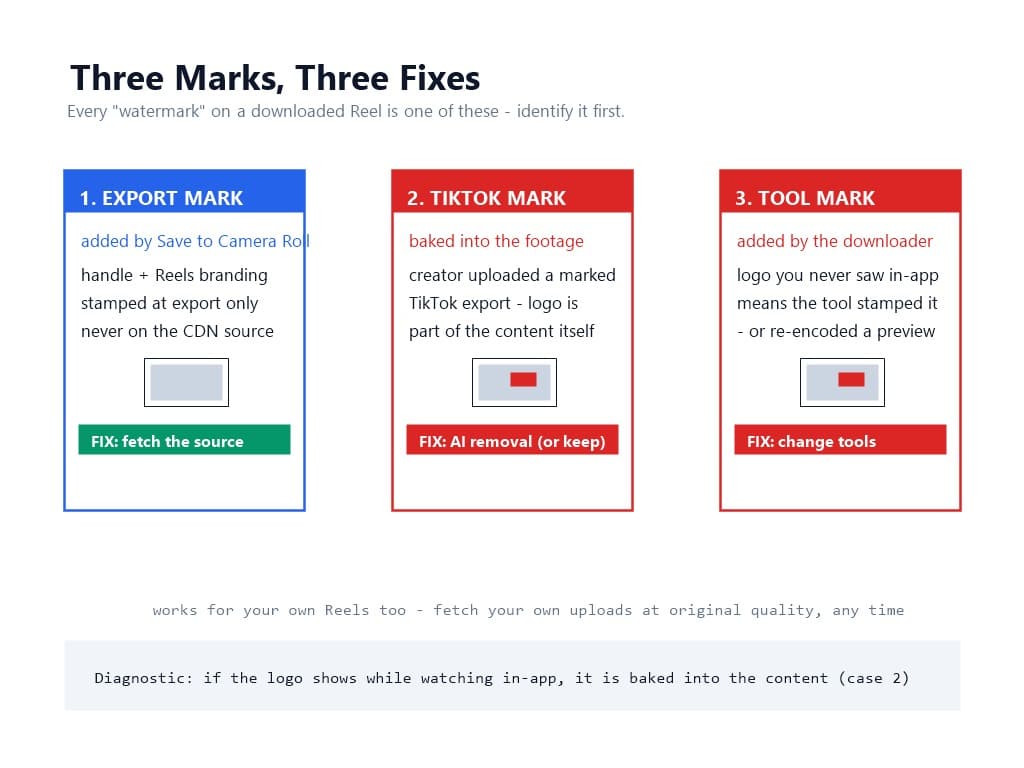
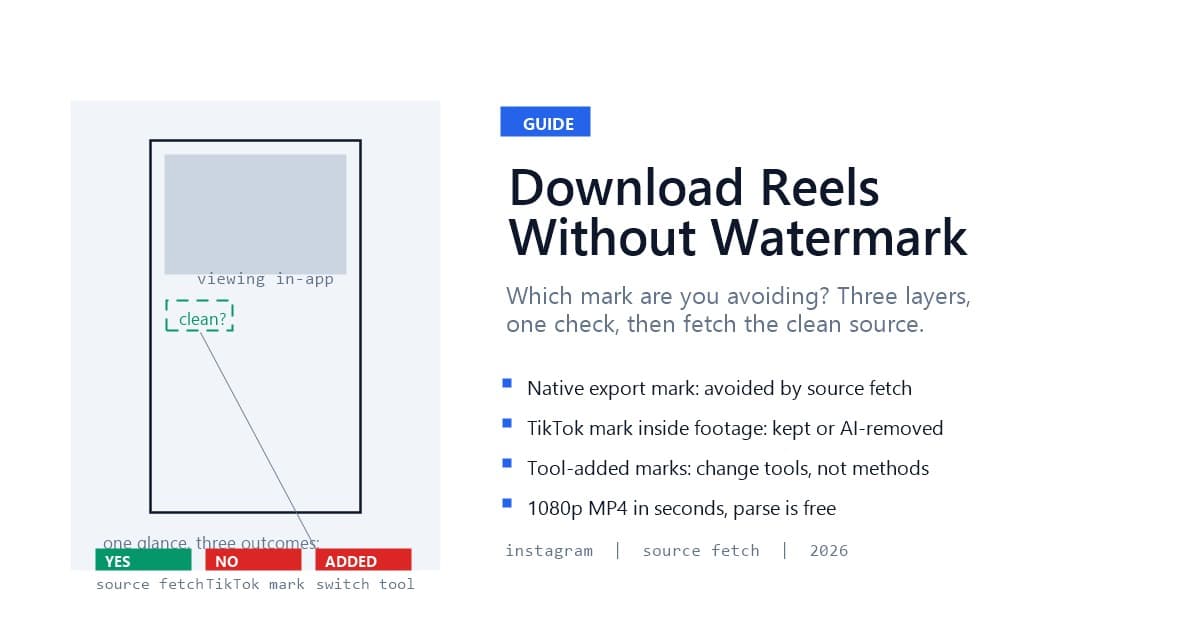
Here is the confusion the SERP never untangles, and it decides which tool you need. Three different marks get called "the Instagram Reel watermark":
The diagnostic is one glance at the Reel inside Instagram: if the logo is visible while watching, it is baked into the content (case 2). If the video looks clean in-app but marked after download, the export or tool added it (cases 1 and 3). Sort your Reel into the right bucket first, and every method choice after that becomes obvious.
The mechanism is a source fetch, not a cleanup. A public Reel's page exposes the same stream endpoints Instagram's player uses; a link-based resolver reads the video's metadata, lists the available quality tiers, and downloads the stream file directly. Because that stream never passes through the branded export path, the saved MP4 carries no Instagram overlay — the watermark was never applied to it, so nothing needs removing.
That construction gives the method three fixed properties, the same ones that hold across the 15 supported platforms in our link pipeline:
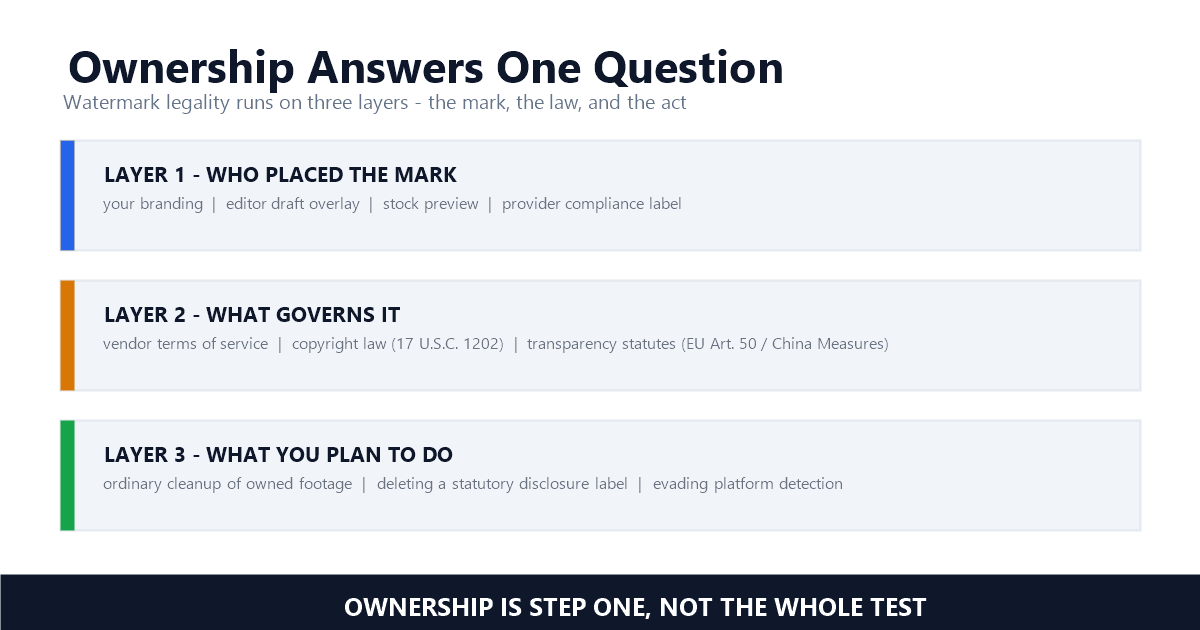
The boundary is equally fixed: the source must be public and reachable. Private accounts, close-friends posts, and stories have no fetchable source — a privacy line, not a tool limitation. And a fetched file shows you exactly what the creator uploaded, TikTok watermark included if one is there. Honest fetching beats promising an impossibility.
Three prerequisites, and one judgment call:
instagram.com/reel/... and instagram.com/p/... forms resolve; instagr.am short links work too.The judgment call is the bucket check from the previous section: glance at the Reel in-app first. Clean in-app → source download solves it. Marked in-app → the mark travels with the file, and you are choosing between keeping it or sending the file to AI removal after.
Open the Reel, tap the three-dot menu (top right on the post, or the share arrow's menu), and choose Copy link. On desktop, copy the URL from the address bar while viewing the Reel. The clipboard gets the standard instagram.com/reel/ form.
Two copy habits prevent the two most common parse failures. Copy from the Reel's own page, not from a DM share — share text buries the URL in prose. And skip screenshot-based "links": an image of a Reel carries no URL at all. If you are queuing several Reels — building a repost archive or a reference library — copy links as you browse and hold them in a list; parsing is free, so the queue costs nothing to build.
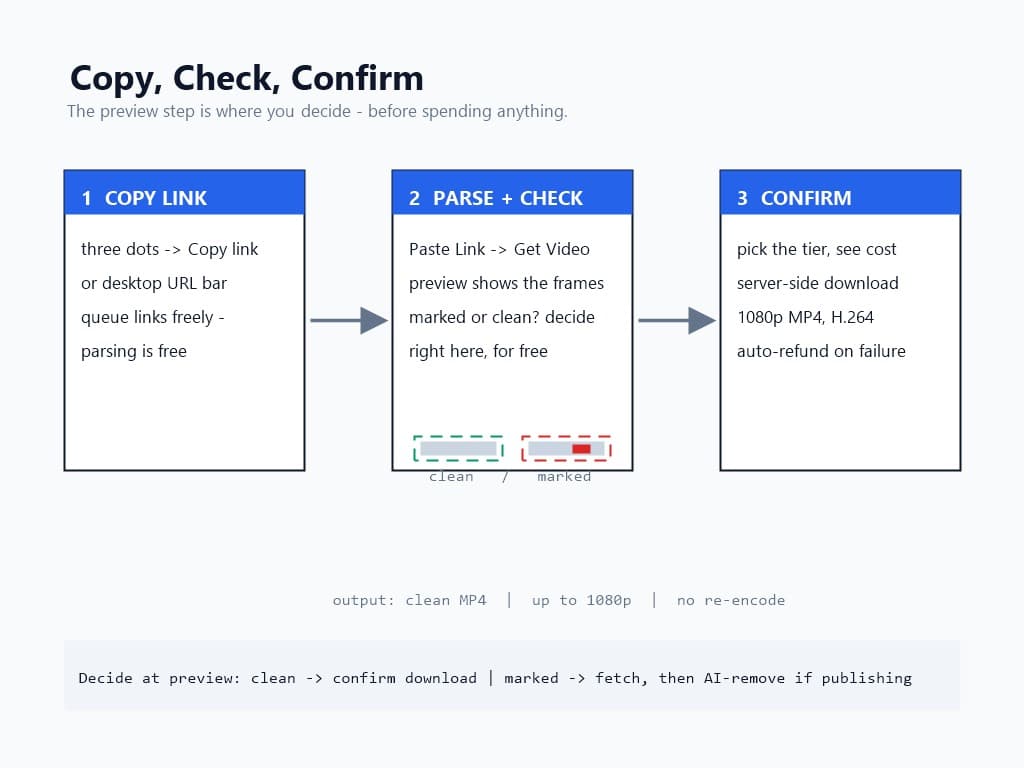
Open the upload page, switch to the Paste Link tab, paste the Reel URL, and hit Get Video. The parse is free and takes seconds: the resolver identifies Instagram, reads the Reel's public metadata, and returns the preview — title, thumbnail, duration, and the quality tiers the source offers.
Use the preview for the bucket check before spending anything. The thumbnail and first frames show whether the footage itself is clean or carries a baked-in TikTok mark. Clean preview → confirm the download; marked preview → decide now whether that mark stays (fine for personal archiving) or whether the file should instead go the AI removal route after fetching. Deciding at preview, instead of after download, is the difference between one workflow and two.
Failure messages map to causes one-to-one: parse failed usually means a truncated link (re-copy from the Reel page); "content not supported" means the link is a carousel or story, not a single video; no watermark-free source found means the post exposes no clean stream — rare on Reels, and the file-upload path is the fallback.
The results list the tiers the source actually has — commonly 1080p down through lower resolutions, labeled and one marked recommended. Confirm the tier you want: the cost shows before you commit and never changes after. The download runs server-side, streaming from Instagram's CDN into your task history; a mid-transfer failure fails cleanly with an automatic refund rather than a charged dead file.
The output is MP4 with H.264 video — Instagram's own delivery codec, playable everywhere without transcoding. For editors and repurposers, that detail is the whole ballgame: starting from the original encode means your edit is the first re-encode in the file's life, not the third after a watermarked export and a cleanup pass.
One quality note specific to Reels: the ceiling is the upload, same as every platform. A Reel posted at 1080p fetches at 1080p; a lower-resolution upload never gains pixels by being downloaded. The preview shows the real tiers — anything promising more is upscaling.
If the bucket check said "marked in-app," the source download delivers the footage as uploaded — TikTok logo bouncing in the corner, handle attached. That is correct behavior: the mark is content, not overlay, and fetching preserves content faithfully. What happens next is a separate decision with two legitimate answers.
Keep it. For personal archives, reference libraries, and private study, the baked-in mark is part of the record. Fetch at original quality and move on — removing it buys nothing.
Remove it. If the clip is going back into publication — your own repurposed content, or licensed material where the original mark matters — the fetched file feeds directly into AI watermark removal. The moving-watermark workflow covers the hard case; for static marks the process is faster still. The combined pipeline is download-then-clean, and it is precisely the two-path order our source-first guide prescribes: fetch everything reachable, clean only what needs cleaning.
Skipping the source step and going straight to removal from a screen recording is the expensive version of the same outcome — worse quality, longer processing, and a watermark that screen capture re-renders rather than preserves.
The refusal boundaries on Instagram specifically:
Each refusal is the method's honesty, not a limitation to route around. Tools claiming to fetch private content are claiming access to your credentials.
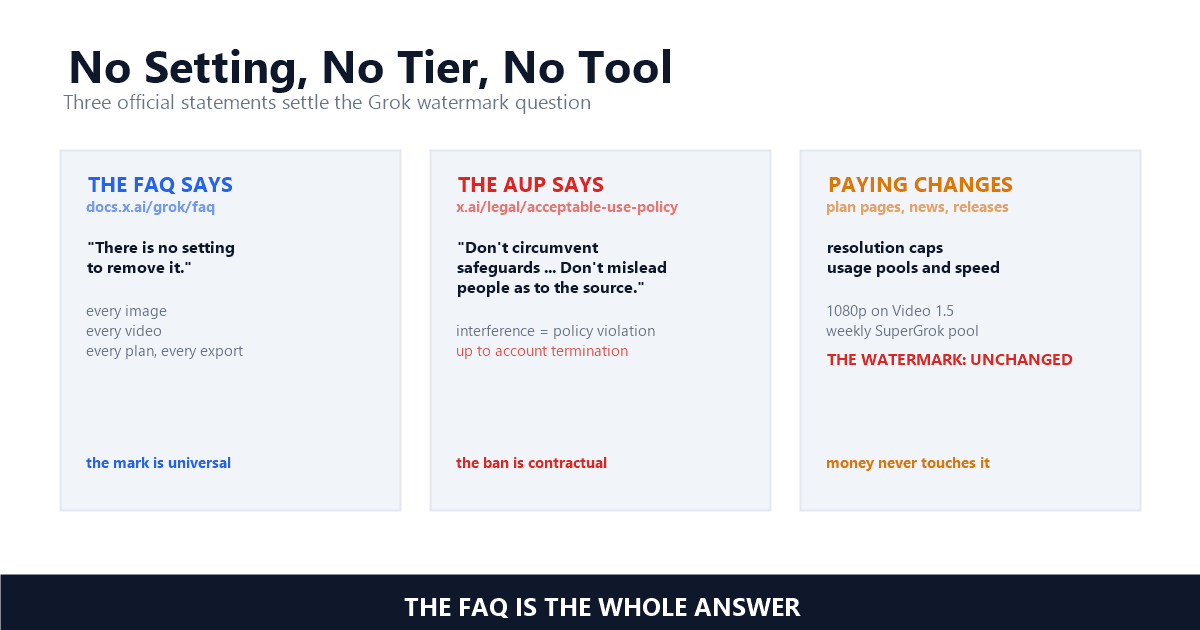
The same framework that governs every platform, with Instagram's own notes. Your own Reels: fetching your own upload's source file is the cleanest act in this entire landscape — you hold the copyright and are retrieving the original, touching no one else's rights-management information. Under the DMCA Section 1202 analysis, liability attaches to stripping others' CMI, and your own content sits outside that line entirely.
Others' public Reels: personal viewing and private archiving sit in broadly tolerated territory. Re-uploading, monetizing, or presenting the content as yours is copyright infringement regardless of watermark state — the fetched file changes nothing about ownership. One Instagram-specific caution: Meta's Content Protection system, now scanning Facebook and Instagram for reposted originals, makes silent reposting riskier in 2026 than the legal gray zone suggests; the 2026 legal guide covers the full framework.
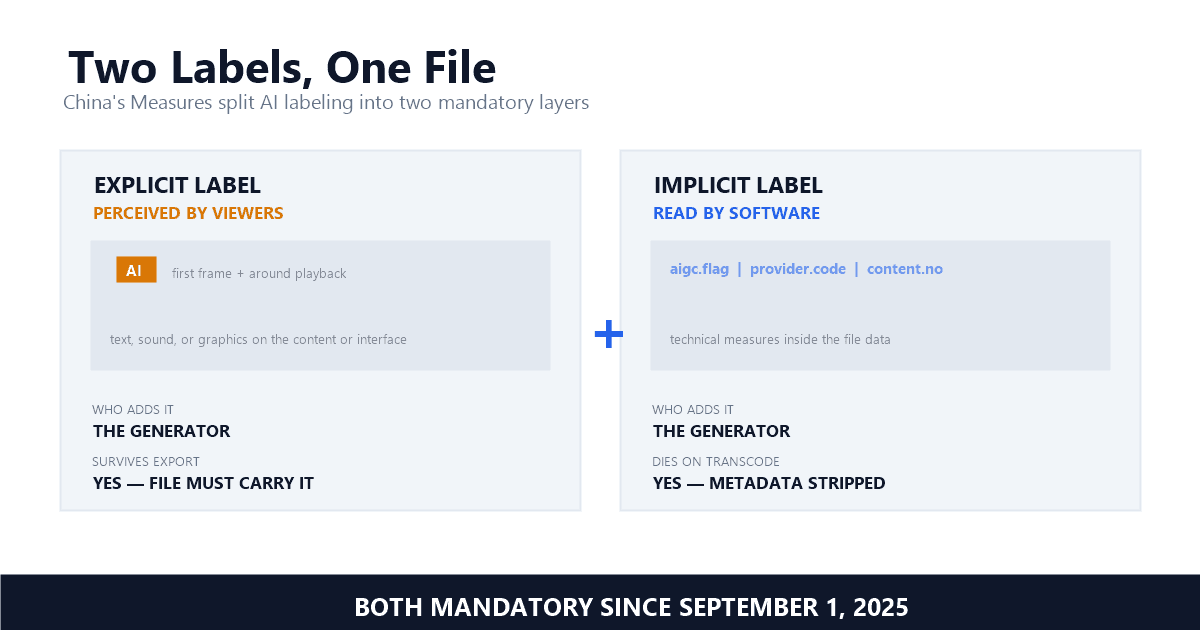
And on the watermark itself: fetching the unbranded source does not strip any attribution from Instagram's systems — you hold an original, not a laundered copy. The provenance distinction matters more every year this regulation tightens.
Downloading Instagram Reels without a watermark is a solved problem once the three layers are separated: the native export watermark (avoided by fetching the source), the baked-in TikTok mark (content, kept or AI-removed as your use requires), and tool-added marks (a reason to switch tools). Copy the Reel's link, paste it into the Paste Link tab, check the preview for the bucket, confirm the tier, and take the original MP4. For marked footage headed back to publication, the download-then-clean pipeline finishes the job.
Start with one Reel you already have open. The fetch takes less time than reading this paragraph took.
Q1: Can I download an Instagram Reel without a watermark for free?
Parsing the link and previewing the result is free — you see title, thumbnail, and quality tiers before anything is charged. The download itself shows its cost before you confirm and auto-refunds on failure. No watermark is ever applied: the file is the CDN source, not an export render.
Q2: Why does my downloaded Reel still show a TikTok logo?
Because the mark is inside the footage, not on it. If the creator uploaded a watermarked TikTok export, that logo is part of the video content itself — no downloader can avoid it. Fetch the source anyway, then run AI watermark removal on the file if your use requires a clean copy.
Q3: What quality do watermark-free Reel downloads get?
The source's original encode — typically 1080p on Reels — as MP4 with H.264 video, with no re-compression. The preview lists exactly the tiers the source has; promises beyond that are upscaling.
Q4: Does Instagram's "Save" button download the video?
No. The bookmark-style Save keeps the Reel in an in-app collection only — no file reaches your device, and the entry disappears if the post is deleted. The only native file route, "Save to Camera Roll," stamps the download with Reels branding.
Q5: Is it legal to download someone else's Reel?
For personal viewing and private archiving, broadly tolerated — the same territory as saving any public webpage. Re-uploading or monetizing it is copyright infringement regardless of watermark state. Your own Reels are yours to fetch in any quality, any time.
Mark Ma is the founder and lead engineer at UnMark, where he leads the development of AI-powered video watermark removal technology. With over a decade of experience in computer vision, deep learning, and video processing, he has built production systems that process millions of frames per month across TikTok, Instagram Reels, and Google Veo content. His technical work focuses on motion-compensated watermark detection, spatial-temporal inpainting, and quality-preserving reconstruction for short-form vertical video. Before UnMark, Mark shipped computer vision infrastructure at scale for content moderation and ad compliance platforms. He writes this blog to document the real engineering, testing, and regulatory reasoning behind UnMark's processing pipeline — every test result, frame analysis, and benchmark published here is reproduced from actual production data, not synthetic examples. His goal is to give creators, brands, and regulators a verifiable technical reference for AI video watermark removal in 2026.