Agency Video Watermark Removal: The Client Handoff Guide
Mark Ma
Here is the situation that surprises most creators: YouTube does not watermark Shorts while you watch them, but the moment you download one — even your own — the file comes back stamped with your @channel handle and a Shorts identifier. If you repurpose that clip to TikTok or Instagram Reels, the YouTube branding rides along in the corner of every frame. Removing it is a two-step job: get the source file out of YouTube Studio, then run AI inpainting over the fixed-position handle overlay.
I have run this exact workflow on dozens of Shorts since YouTube started stamping downloads, and in this guide I will walk through each step with the timing numbers from my own tests in 2026 — including where this watermark differs from TikTok's moving one, because that difference changes how you remove it.
Last updated: August 2026
The YouTube Shorts watermark is a fixed-position overlay — the source channel's @handle plus a Shorts identifier — that YouTube burns into a Short when you download it, so the file carries visible attribution wherever it is re-shared. Unlike TikTok's bouncing logo, it holds a steady position through the entire clip.
Two things define this watermark in practice. First, it only appears on downloaded files — viewers watching inside YouTube never see it. Second, because it sits still, the same pixels are covered in every single frame, which turns out to be good news for removal: a stable mask gives an AI model maximum surrounding context to reconstruct from.
Shorts themselves are vertical 9:16 video, typically up to 1080×1920 (1080p), and since late 2024 YouTube has allowed Shorts up to 3 minutes long — well past the original 60-second cap. So the file you are cleaning is a proper full-resolution vertical video, worth treating carefully rather than screen-recording.
YouTube adds the watermark to downloaded Shorts as a cross-platform attribution play: the platform wants every re-shared clip to advertise that it originated on YouTube Shorts. When YouTube announced the feature, its explanation was direct: "We've added a watermark to the Shorts you download so your viewers can see that the content you're sharing across platforms can be found on YouTube Shorts." — YouTube, official creator announcement
The rollout started on desktop downloads and expanded to mobile over the following months, mirroring the tactics TikTok and Instagram adopted earlier. This is platform competition wearing an attribution costume. TikTok stamps its bouncing logo on saved videos; Instagram burns the Reels glyph on downloads; YouTube now does the same with the @handle overlay.
For creators, the practical consequence is the part that matters. Algorithms on rival platforms are not neutral toward foreign watermarks — Instagram has publicly said it deprioritizes Reels carrying visible watermarks from other apps (Instagram's official guidance). A Short cross-posted with the YouTube handle attached can quietly lose reach before your content even gets evaluated.
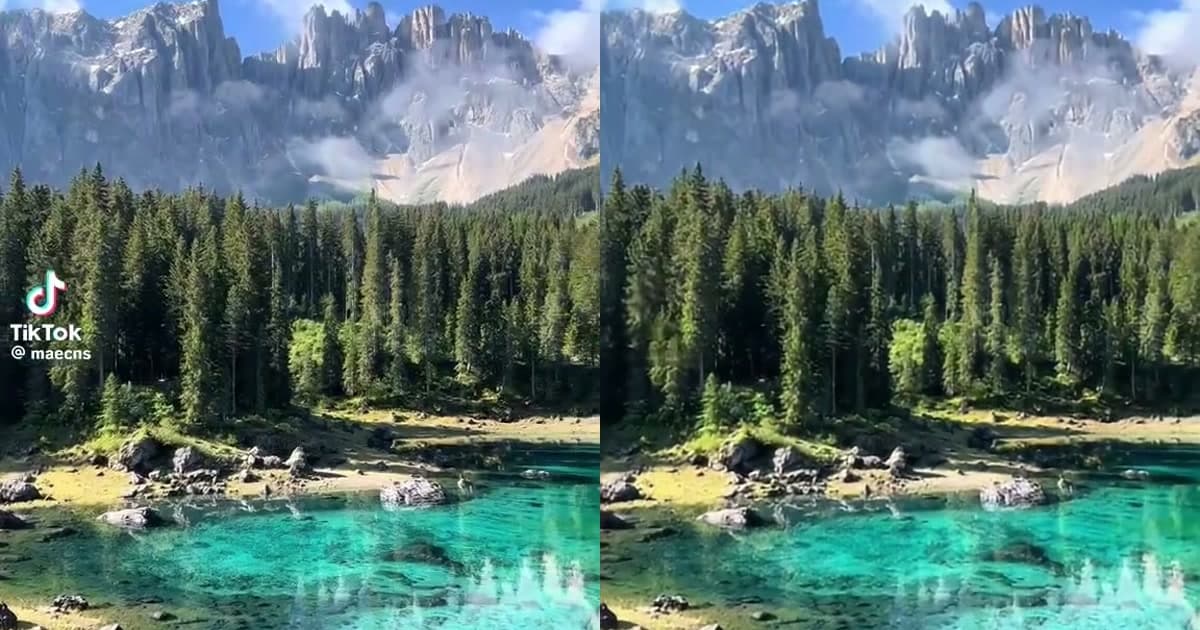
The Shorts watermark is static; TikTok's is kinetic — and that single difference drives everything about removal difficulty. TikTok's logo and username bounce between corners across the clip, so a removal tool must track a moving target and reconstruct a different background region at each position. I documented frame-by-frame behavior in our TikTok moving watermark test results.
The Shorts handle does not move. One mask region, identical across all frames. For AI inpainting, that is the easiest possible case: the model sees the same neighborhood of surrounding pixels in every frame and can synthesize a consistent reconstruction. In my experience, static overlays come out clean on the first pass at a noticeably higher rate than moving ones.
One nuance worth knowing: the handle often sits over semi-transparent background or near the bottom UI-safe zone where captions and buttons live. The mask should hug the text tightly rather than covering a wide rectangle, because the tighter the mask, the less the model has to invent.
Three prerequisites, and each one prevents a specific failure I see repeatedly.
First, a downloaded copy of the Short. You need the actual MP4 file, which means downloading from YouTube Studio (desktop) or the app's save-to-device option — both of which apply the watermark. Third-party downloaders vary wildly in what they return; some pull clean streams, some re-compress, some inject their own branding. If you go that route, inspect the file before building any workflow on it.
Second, the right format and resolution. The removal pipeline accepts MP4 and MOV, with MP4 in H.264 or H.265 codec giving the most reliable results. Shorts are already vertical MP4s at up to 1080×1920, which processes at full quality on paid plans (the free tier caps at 720p HD).
Third, ownership. This workflow is for your own Shorts — content you uploaded and want to repurpose elsewhere. Downloading another creator's Short and erasing their handle to re-upload it is a different thing entirely, and I will draw that line explicitly in the legal section below.
Start on desktop. Log into YouTube, open YouTube Studio, go to Content, and switch to the Shorts tab. Find your video, click the three-dot options menu, and choose Download. The file arrives as an MP4 with the @handle watermark already burned in.
Two things to check immediately after download:
If you manage multiple channels or post a 3-5 Shorts weekly cadence — the range YouTube's own guidance favors — download in one sitting rather than per-post. Batching the download step keeps the whole repurposing pipeline in a single work session instead of scattered across the week.
Mobile alternative: in the YouTube app, open your Short, tap the three-line menu on the video preview, and choose Save to device. Same watermark, same file — just smaller screen for inspecting it.
Upload the downloaded MP4 to UnMark. The AI detects the overlay region; because the Shorts handle holds a fixed position, the mask locks onto one area and the model reconstructs that region across every frame of the clip.
The reason this works so cleanly on Shorts comes down to inpainting mechanics. AI inpainting is a reconstruction technique where the model analyzes pixels surrounding a masked region and synthesizes plausible replacement content frame by frame. With a static watermark, the surrounding context is identical across the whole clip, so the reconstruction stays stable — no shimmer, no drift. For the deeper technical picture, our walkthrough of how UnMark removes video watermarks covers the detection-to-reconstruction chain.
Processing time is short for Shorts. A typical 1-minute 1080p video processes in 2-5 minutes, and GPU acceleration cuts longer clips sharply — a 10-minute video finishes in about 3 minutes. Since Shorts cap at 3 minutes, expect most clips to land at the quick end of that range.
Cost is equally small: roughly 1 credit per minute of 1080p video, so a 60-second Short costs about 1 credit. If you are cleaning a week's worth of Shorts at once, the batch queue handles up to 20 files simultaneously — the workflow I detailed in the batch watermark removal guide.
Download the processed file and verify before it goes anywhere near another platform. My routine takes about 30 seconds per clip.
Freeze the frame where the handle used to sit and look at the region at full size. Then check four things:
That last point matters more than it sounds. A proper removal rebuilds only the masked pixels; it never touches your aspect ratio. If a tool returns your Short with black bars or a cropped frame, it took a shortcut, and that shortcut will show up in the feed.
Once verified, the clean vertical MP4 drops straight into TikTok, Instagram Reels, or back into your editor. Creators who shoot once and post everywhere keep a clean master precisely for this — and our guide on repurposing TikTok videos for Instagram Reels covers the reverse direction of the same pipeline.
Four problems cover nearly everything that goes wrong with Shorts removal, and each has a quick fix.
Ghost text after processing. The mask was too loose or slightly offset, leaving edge pixels of the handle unmasked. Re-run with a snugger mask hugging the text. Static overlays are forgiving — the second pass almost always clears it.
Output looks softer than the source. You are likely processing on a plan capped below the source resolution: a 1080p Short on the free tier returns 720p. Check plan limits before blaming the removal quality.
The file came from a third-party downloader and behaves oddly. Re-compressed or stream-stitched downloads sometimes carry artifacts that confuse detection. Go back to the YouTube Studio download as your source of truth.
You want the thumbnail clean too. The handle sometimes appears on exported frames used as thumbnails. Export the frame as an image and run it through the same removal pass — a still is a single-frame job.
If your batch mixes Shorts with TikTok or Reels clips, set expectations by watermark type: the static Shorts handle is the easiest case in the queue, while moving logos deserve a second look. Our comparison of AI inpainting vs cropping vs blurring explains why mask-and-reconstruct beats the alternatives for all of them.
For your own content, yes — removing the handle from a Short you created and uploaded is a legitimate repurposing step, no different from re-editing your own footage. You are not erasing someone else's attribution; you are managing your own branding across platforms.
The line moves when the content is not yours. Downloading another creator's Short and stripping their @handle to re-upload it raises real problems: DMCA Section 1202 targets removal of rights-management information, platform terms prohibit redistributing others' content without permission, and the original creator retains copyright regardless of what the file looks like. Our 2026 legal guide to removing watermarks from AI videos walks through the framework in detail.
There is also a practical honesty angle. Even when removal is legal, audiences on the destination platform deserve content that stands on its own. The goal of removing the handle is a clean native-looking post — not passing off borrowed work as yours. Brands running creator content through approval pipelines bake this rule into the workflow we describe in the UGC creator workflow guide.
The YouTube Shorts watermark is the newest entry in the platform watermark wars — a fixed @handle overlay stamped on every downloaded Short to claim cross-platform attribution. Because it holds still, it is also the easiest watermark in the typical creator queue to remove: download from YouTube Studio, run AI inpainting over the handle region, verify the 9:16 output, and cross-post a clean file that platforms evaluate on its own merits.
With Shorts now running up to 3 minutes at 1080×1920, the content is worth the extra two minutes of cleanup. Run your first Short through UnMark today, and keep the clean master — your future cross-platform self will reuse it constantly.
Q1: Do YouTube Shorts have a watermark when you watch them?
No. The watermark only appears on downloaded files. Inside YouTube, Shorts play clean; the @handle and Shorts identifier are burned in at download time, whether you download from YouTube Studio or the mobile app.
Q2: Is the Shorts watermark easier to remove than TikTok's?
Generally yes. The Shorts handle holds a fixed position, giving AI inpainting a stable region to reconstruct across every frame. TikTok's logo bounces between corners, which forces the model to track and reconstruct different background regions as it moves.
Q3: Will removing the watermark change my aspect ratio?
No. Inpainting rebuilds only the masked overlay pixels. The clip keeps its native 9:16 vertical frame with no cropping, black bars, or rescaling — provided the tool you use reconstructs rather than crops.
Q4: How long does removal take for one Short?
A typical 1-minute 1080p video processes in 2-5 minutes, and Shorts cap at 3 minutes, so most clips finish at the quick end. Cost runs about 1 credit per minute of 1080p video.
Q5: Can I remove the handle from someone else's Short?
That is not a supported use. Stripping another creator's attribution to re-upload their content conflicts with DMCA Section 1202 and platform terms. This workflow is for repurposing your own uploads.
Mark Ma is the founder and lead engineer at UnMark, where he leads the development of AI-powered video watermark removal technology. With over a decade of experience in computer vision, deep learning, and video processing, he has built production systems that process millions of frames per month across TikTok, Instagram Reels, and Google Veo content. His technical work focuses on motion-compensated watermark detection, spatial-temporal inpainting, and quality-preserving reconstruction for short-form vertical video. Before UnMark, Mark shipped computer vision infrastructure at scale for content moderation and ad compliance platforms. He writes this blog to document the real engineering, testing, and regulatory reasoning behind UnMark's processing pipeline — every test result, frame analysis, and benchmark published here is reproduced from actual production data, not synthetic examples. His goal is to give creators, brands, and regulators a verifiable technical reference for AI video watermark removal in 2026.