Grok Imagine Video Watermark Removal: What xAI's Rules Actually Allow (2026)
Mark Ma
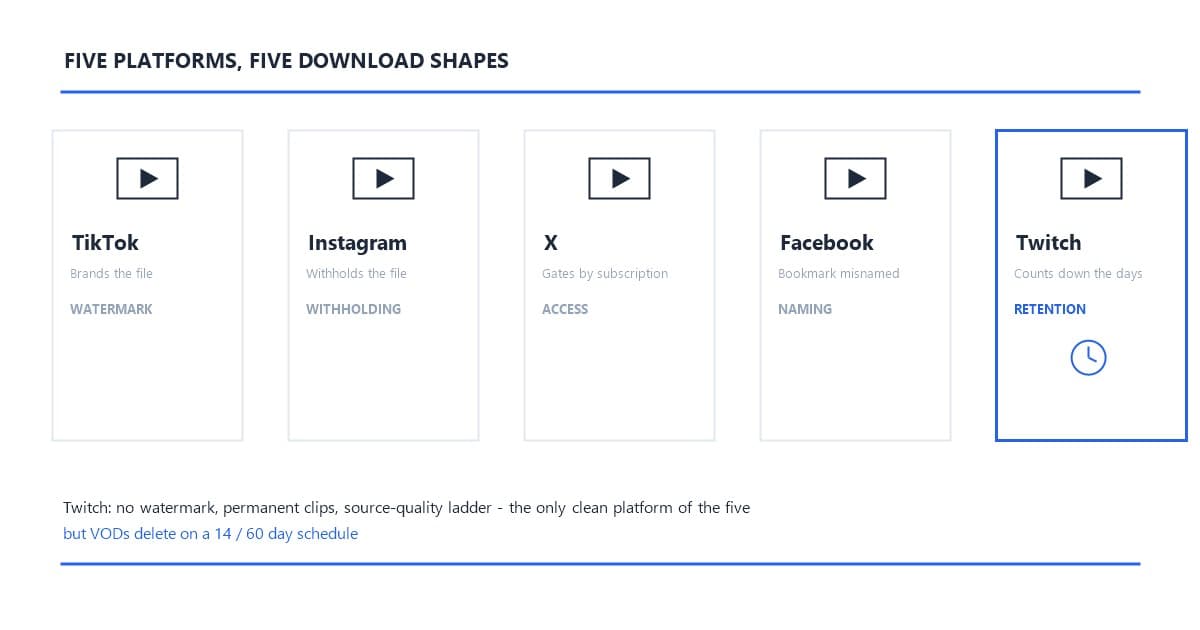
Downloading from Twitch is the easiest case in this whole platform series — with one twist. Twitch stamps no watermark on anything, clips never expire, and creators get a native export that even offers a portrait version for vertical platforms. The twist is the clock: full-stream VODs delete themselves after 14 or 60 days depending on the channel's status, and once they are gone, no tool on the market can bring them back. So the real skill on Twitch is not beating a download wall — it is knowing which lane serves you and how much time you have.
This is the fifth and final platform shape in our series. TikTok brands the file. Instagram withholds it. X gates the button by subscription. Facebook names a bookmark as a download. Twitch simply lets content sit in the open and counts down the days on the long-form stuff. This guide walks every lane — creator exports, the link method for everyone else — plus the quality ladder and the retention rules that make Twitch downloads a scheduling problem as much as a technical one.
Last updated: September 2026
Every platform in this series obstructs downloads in its own shape, and Twitch's shape is the least obstructive of the five. TikTok hands everyone a button and brands the file it produces — the watermark problem, solved by fetching the unbranded play source. Instagram withholds the file outright — the withholding problem, solved by fetching the CDN source. X gates its button by subscription — the access problem from the X download guide. Facebook names a bookmark as a download — the naming and ownership problem from the Facebook guide. Twitch runs none of those plays: no watermark, permanent clips, and a full quality ladder open to any logged-out resolver.
What Twitch has instead is the retention problem. Clips and Highlights stay forever, but past broadcasts self-delete on a schedule — and the native download options exist only for the creator's own content. For everyone else, the link method is the one lane that works, same as every platform in the source-first series. The difference is what the file contains: because Twitch brands nothing, every lane delivers a clean file, and the only marks that ever ride along are marks the streamer put there.
No — and this is the quiet reason Twitch sits at the end of this series. A clip fetched from Twitch arrives as a clean MP4 whether it comes from the creator's own export or a link-based resolver. Twitch never ran the export-branding play that TikTok, Instagram, and Facebook built their download paths around, and there is no paid tier to unlock a clean version, because every version is clean.
What you can see on clip footage is content, not branding. A streamer's facecam overlay, a channel logo baked into the broadcast layout, a sponsor banner in the scene — all of that exists in the pixels Twitch stores, and no downloader can avoid it. The one-glance diagnostic from the series applies exactly: if a mark shows while watching the clip on Twitch, it was part of the stream and travels with any file you fetch. If the clip looks clean on Twitch, your download will be clean. The marks that do worry editors — platform stamps like the TikTok logo — are the marks Twitch simply does not add.
The native lanes belong to the creator, and they are genuinely good.
The creator lanes are the reason this platform's "own content" story is the strongest in the series. Facebook's native download serves original quality but never leaves your library in a usable shape for repurposing; Twitch ships an export pipeline that already anticipates the editor's workflow, portrait framing included. The gap is scope, as everywhere: the moment the clip belongs to someone else's channel, the dashboard is not yours to click, and the link lane is the one that works.
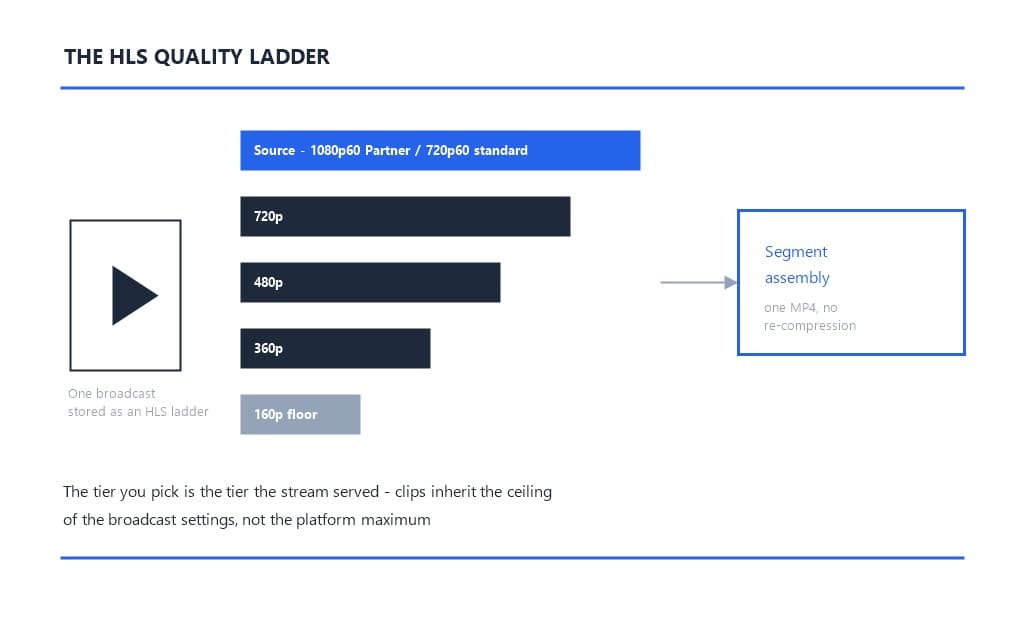
Twitch stores every broadcast as an HLS ladder — the same video encoded at several resolutions, each chopped into short segments. A clip inherits the ladder from the stream it was cut from. In practice:
Any resolver that reads the playlist can list every rung of that ladder, and the file you fetch is the platform's own encode of the tier you pick — no re-compression on the way out. We tested a Partner channel's clip through the resolver: the preview listed five tiers from source down to 160p, and the fetched source file played identically to the in-browser rendition, frame rate and all.
One expectation to set: clips are cut from the live ingest, so the ceiling is the streamer's broadcast setting, not the platform's maximum. A stream broadcast at 720p60 yields clips whose source tier is 720p60 — the highest version that exists, though not an automatic 1080p upgrade.
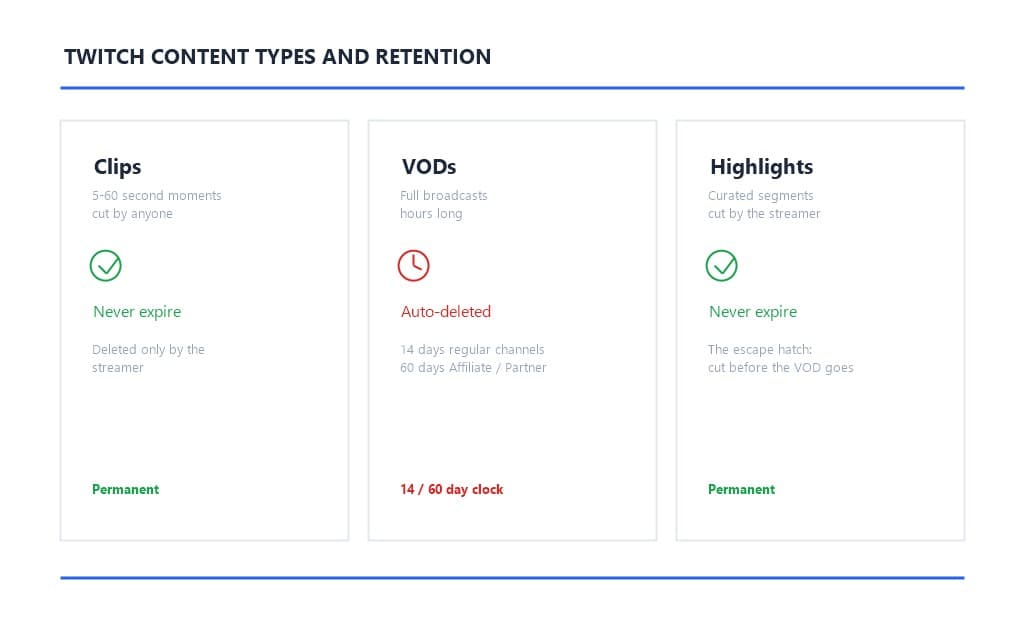
Because Twitch stores past broadcasts on a timer, and the timer length depends on the channel:
Once a VOD passes its window, deletion is total. No downloader, archive trick, or cache probe recovers a removed broadcast — the segments are gone from Twitch's storage, and every tool on the market reads from that storage. The practical rule is the one our pillar guide applies platform-wide: fetch the file while it exists, because the download window is also a closing door.
This is the mirror image of Facebook's Live policy, where replays vanish after 30 days. On Twitch the pressure is broader — it applies to every broadcast, not just lives — but the escape hatch is also built in: streamers who want permanence cut Highlights before the clock runs out, and highlights carry the same clean-file properties as clips.
Three things:
And the pre-paste glance: run the watermark diagnostic. For Twitch this is mostly about spotting streamer overlays and — the real use case for this series — spotting marks inherited from elsewhere. A clip of a stream reacting to TikToks contains TikTok watermarks inside the stream footage. Decide at preview whether that stays (fine for a reaction archive) or the file heads to AI cleanup after fetching.
Open the clip, tap the share icon under the player, and choose Copy link. On desktop, the address bar works too. Three URL forms all point at the same clip:
clips.twitch.tv/{slug} — the canonical share formtwitch.tv/{channel}/clip/{slug} — the form you get browsing a channel's clip tabtwitch.tv/videos/{id} — the VOD form, for full past broadcastsThe resolver treats all three as one video before parsing, so copy whatever the share sheet hands you. One habit that matters more here than anywhere else in the series: clip slugs are unique, so share from the clip page itself rather than a channel page or search result — a channel URL resolves to a live stream if the channel is broadcasting, which is not the clip you meant.
If you are mining a stream for editing material — the standard highlight-reel workflow — copy links as you watch and queue them. Parsing is free, so the queue costs nothing until you confirm.
Open the upload page, switch to the Paste Link tab, paste the URL, and hit Get Video. The parse is free and returns in seconds: the resolver identifies Twitch, reads the public metadata, and shows the preview — title, thumbnail, duration, and every quality tier the source ladder serves.
Use the preview for the two checks that matter here. First, the content check: the thumbnail shows whether the footage is clean or carries overlays you care about. Second, the tier check: this is where the quality ladder pays off — clips from a well-configured stream list source, 720p, 480p, and below, and the recommended tier is the highest the source actually has. Editors pulling material for a montage want source; a quick reference copy at 480p costs less and transfers faster.
Failure messages map to causes, and in our testing we hit one on purpose: pasting a channel URL while the channel was live returned "no video found" — the link pointed at the stream, not a clip. The mapping holds across the board: parse failed usually means a truncated link; "no video found" means a channel page rather than a clip or VOD; "content not supported" flags live streams and edge cases the pipeline does not treat as standard video — live capture is a different product category entirely, and the resolver refuses what it cannot deliver as a finished file.
The results list the tiers the source actually serves, one marked recommended. Confirm the tier: the cost displays before you commit and does not change after. The download runs server-side — fetching the segments from Twitch's CDN, assembling them into one file in your task history — and a mid-transfer failure fails cleanly with an automatic refund rather than a charged dead file.
The output is MP4 with H.264 video, the combination that opens in every editor without transcoding. For the dominant use case — editors building highlight compilations, streamers repurposing their own moments for TikTok — starting from the platform's own encode keeps the edit chain short: your montage is the first re-encode the footage goes through, which is exactly where you want the quality budget spent.
One boundary to calibrate: a clip's audio carries whatever the stream carried, including any music the streamer played. That has legal weight beyond editing convenience, and it is the first thing a takedown system hears.
The refusal boundaries on Twitch specifically:
Each refusal is the method's honesty. The same wall stands across the series: platform-gated content stays gated, deleted content stays deleted, and tools that claim otherwise are trading on your login.
The framework carries over intact. Your own content: the cleanest case in the landscape — the dashboard export exists for exactly this, and fetching your own stream's source touches no one else's rights-management information, as the DMCA Section 1202 analysis draws the line.
Others' public clips: personal viewing, private reference, and editing practice sit in broadly tolerated territory — Twitch's terms keep content ownership with the creator, and Twitch does not notify streamers when their clips are fetched. The line sharpens on republication: re-uploading a streamer's clip as your own, monetizing a compilation without the creator's OK, or lifting clips from a channel that has asked not to be clipped is infringement regardless of how clean the file is. Music inside the clip is a second layer entirely — the streamer may have rights to play a track that you do not have to re-upload.
One carry-over from the series: fetching the source leaves no provenance gap. You hold the platform's own encode, not a laundered copy — which, on a platform that stamps nothing, means exactly what it sounds like: the file is the stream, and the responsibility for how you use it is yours.
Downloading Twitch clips is the gentlest case in this series: no watermark anywhere, permanent clips, a quality ladder that reaches the source encode, and creator exports that already anticipate the editor's workflow. The retention clock is the one real constraint — clips and highlights last forever, VODs last 14 or 60 days, and nothing recovers a deleted broadcast. Copy the link, paste it into the Paste Link tab, check the preview, confirm the source tier, and take the file while it exists. That is the whole workflow — Twitch's simplicity is why this series ends here, with the platform that proves the watermark was never the hard part.
The fetch finishes before the clip's own replay buffer does.
Q1: Do downloaded Twitch clips have a watermark?
No. Twitch stamps no branding on clips or VODs, so every lane — native export, link method, developer-tools workaround — delivers a clean MP4. Marks visible on clip footage are streamer overlays or content from the original broadcast, and they ride along in any file you fetch.
Q2: Do Twitch clips expire?
No — clips stay on Twitch indefinitely unless the streamer deletes them. Past broadcasts are the ones on a clock: 14 days on regular channels and 60 days for Affiliate, Partner, and Turbo channels. Highlights never expire, which is why streamers cut them before a VOD's window closes.
Q3: Why is there no download button on other people's Twitch clips?
Twitch reserves download controls for creators — the Creator Dashboard exports your own clips (landscape and portrait) and VODs through Video Producer. Viewers get a share sheet that copies a link, not a file, so everyone else fetches the clip through a link-based downloader.
Q4: What quality can I get when downloading a Twitch clip?
Every rung of the stream's ladder: source (typically 1080p60 on Partnered channels, 720p60 otherwise) down through 720p, 480p, 360p, and 160p. The fetched file is the platform's own encode of your chosen tier with no re-compression. The ceiling is the streamer's broadcast setting.
Q5: Can I download subscriber-only or expired Twitch VODs?
No. Sub-only VODs are gated at the platform layer — no tool bypasses the paywall without borrowing your login — and expired broadcasts are deleted from Twitch's storage entirely, which no downloader can recover. Cut Highlights before a VOD expires if the content matters.
Mark Ma is the founder and lead engineer at UnMark, where he leads the development of AI-powered video watermark removal technology. With over a decade of experience in computer vision, deep learning, and video processing, he has built production systems that process millions of frames per month across TikTok, Instagram Reels, and Google Veo content. His technical work focuses on motion-compensated watermark detection, spatial-temporal inpainting, and quality-preserving reconstruction for short-form vertical video. Before UnMark, Mark shipped computer vision infrastructure at scale for content moderation and ad compliance platforms. He writes this blog to document the real engineering, testing, and regulatory reasoning behind UnMark's processing pipeline — every test result, frame analysis, and benchmark published here is reproduced from actual production data, not synthetic examples. His goal is to give creators, brands, and regulators a verifiable technical reference for AI video watermark removal in 2026.