COPIED Act vs Watermark Removal: What's Actually Illegal (2026)
Mark Ma
Last updated: October 2026
Search zoom recording watermark removal and the front page splits in two. Three of the top slots belong to Zoom's own support articles, and the rest are generic remover-tool roundups that treat the mark as a nuisance to blur away. None of the tool pages answer the question Zoom's articles actually raise, because the tiled text across a Zoom recording is not a brand mark at all — it is the email address of the person who was watching.
Building UnMark, our watermark removal product, has put us inside every watermarking system this blog has covered, and Zoom is the outlier in all of them. Kling, Veo, Canva, Filmora, CapCut — across all of them the mark identifies the tool or the license. Zoom's identifies the viewer. That difference changes what the mark is for, who controls it, and whether removal is even the right question, and we compared the two models against the official pages.
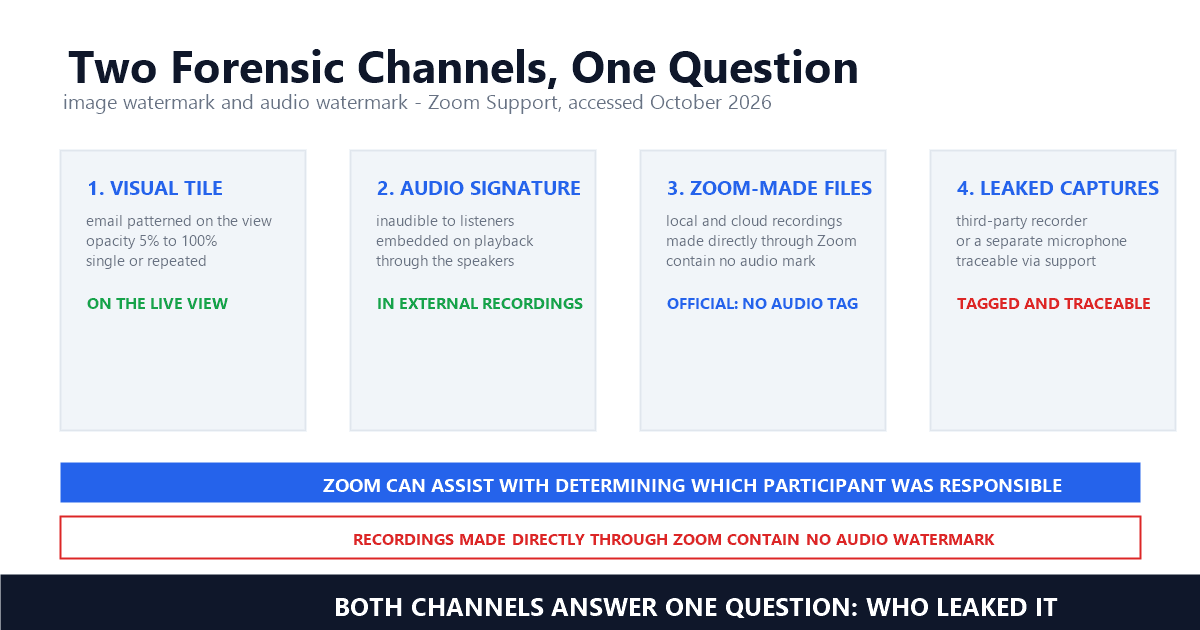
The short version: the visual watermark is an admin-controlled overlay that tiles each authenticated viewer's email across their own view, and a second, inaudible audio watermark rides on playback to tag third-party recordings. Recordings made through Zoom's own apps contain no audio watermark, every toggle lives in the web portal, and participants cannot switch any of it off.
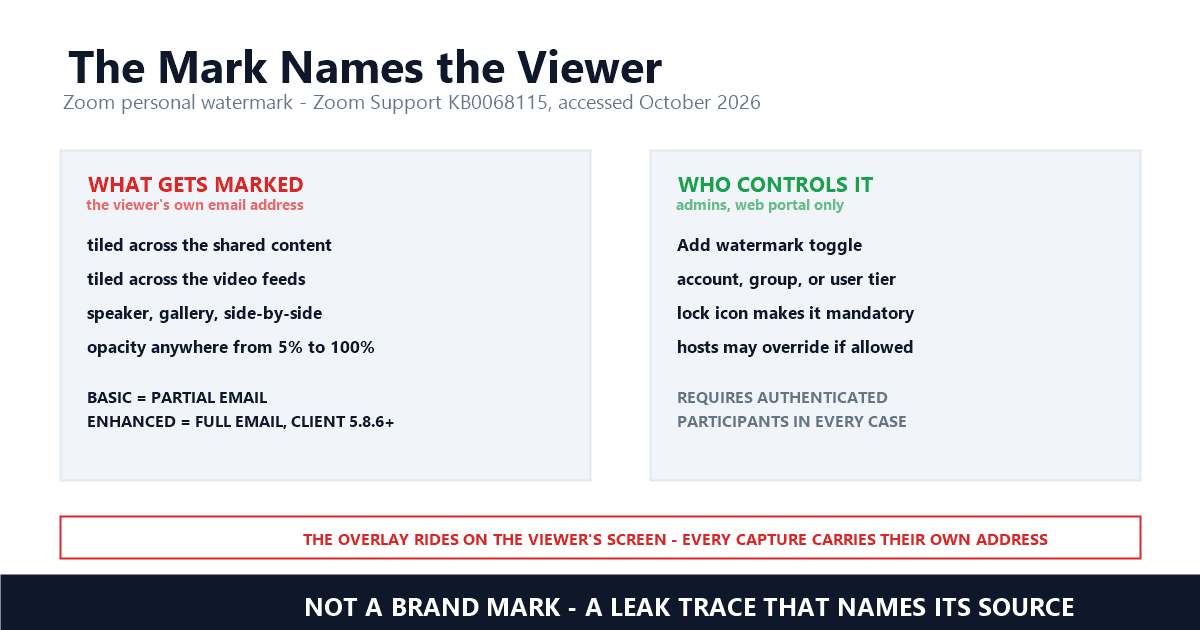
Zoom calls it the personal watermark: a semi-transparent overlay that carries the viewing participant's email address across whatever they see — shared content, video feeds, or both. It is admin-controlled, it rides on top of the live view, and it exists to identify the person watching, not the person presenting.
Zoom's support article defines the mechanism outright: "The watermark feature superimposes an image, consisting a meeting participant's email address, onto the shared content they are viewing and over their video in most video layouts (Speaker, Gallery, Side-by-side)" — Zoom Support, Adding an image watermark. The stated purpose follows in the next sentence: "This feature secures the information that you share during a meeting and ensures that shared or confidential content belongs to you" — Zoom Support. Two variants exist: Basic is the partial-address variant, showing only a portion of the email, and Enhanced is the full-address variant, which requires desktop client 5.8.6 or higher.
The overlay is configurable. Admins choose a single instance or a repeated pattern, point it at shared content, video feeds, or both, and set an opacity anywhere from 5% to 100% — Zoom's own example reads: "if admin@myzoommeeting.com is viewing shared content, the watermark of admin@myzoommeeting.com will be patterned across the shared content and the videos of the participants" — Zoom Support. That is a different animal from the fixed corner logo on a Sora export: the Zoom mark moves with each viewer and covers the frame by design.
Because the threat model is different. Every other mark in this series says something about the video itself — the tool that made it or the license behind it; Zoom's says something about the person watching. The overlay exists so a leaked capture points back to whoever captured it.
We compared the two models across this series. Generation platforms stamp their output — Seedance tags every clip it renders, and free tiers on Luma or Hailuo flag the plan that produced the file. Editors and design tools price the clean version — Filmora embeds a license flag at export, and CapCut gates resolution and assets behind a subscription. Every one of those stamps describes the content. Zoom's describes a person, and that is what makes it usable as evidence.
The audio channel completes the design. Zoom describes it as "an inaudible watermark of a user's personal information embedded in the audio that is played through the receiving user's speakers by the client receiving audio from Zoom meeting servers" — Zoom Support, Adding audio watermark — and draws the forensic conclusion directly: "This means that if someone records the meeting, with either a separate microphone or 3rd-party, and shares the audio file without permission, Zoom can assist with determining which participant was responsible" — Zoom Support. Both channels answer one question: who leaked it.
No, and the interface makes that plain. At the user level the Add watermark toggle lives under Settings, then Meeting, in the web portal, and Zoom's own page warns that a grayed-out toggle has been locked at the group or account level. Your move is contacting the admin, not hunting for a hidden switch.
The exact wording: "If the option is grayed out, it has been locked at either the group or account level. You need to contact your Zoom admin" — Zoom Support. The design leaves no workarounds on the participant side, because the feature's prerequisites close the loop: an account owner or admin must first enable Only authenticated users can join meetings, or the host must tick Require authentication to join when scheduling. The watermark keys off a verified identity, so a participant cannot dodge it by joining from a different client or device — the overlay follows the account, not the machine.
The scheduling surface is narrow by the same logic: "This feature is only available through the Zoom web portal. Other scheduling methods, such as the Zoom desktop client or the Microsoft Outlook plugin or add-in, do not support having this option available" — Zoom Support. There is one sanctioned exception, and it runs upward, not downward: where the account enables "Allow hosts to turn watermark on or off during a meeting", the host — not any participant — can toggle the visual watermark mid-session, and Zoom notes that capability itself "must be enabled by Zoom" first.
Through the web portal, at 3 tiers. Account admins open Account Management, then Account Settings, pick the Meeting tab, and flip the Add watermark toggle under Schedule Meeting; group admins do the same in Group Management; individual users keep the toggle unless it is locked. The audio watermark toggle sits on the same page.
The account-level sequence runs through 8 numbered steps, verbatim from Zoom's article: sign in as an admin with the privilege to edit account settings, open Account Management then Account Settings, click the Meeting tab, and "click the Add watermark toggle to enable or disable it" — Zoom Support. A verification dialog confirms the change, and a lock icon makes the setting mandatory for everyone in the account — locked settings are exactly what participants see as a grayed-out toggle. Watermark customization follows the same path: Single instance or Repeated, Visible on shared content, video feeds, or both, and Opacity is a slider from 5% to 100%, where Zoom notes that lower values leave the underlying content more visible.
Three optional switches sit next to the toggle. "Allow hosts to override watermark settings" lets users adjust customization for their own meetings — and Zoom notes it is disabled automatically once the account-level toggle is locked. "Allow hosts to turn watermark on or off during a meeting" enables the mid-session control, subject to Zoom-side enablement and client 5.8.6 or later. And "Turn on watermark by default for all meetings, including meetings scheduled through calendar integrations" sets the default so hosts would have to opt out explicitly — combined with a lock, users cannot disable it at all.
No — and Zoom says why. Local and cloud recordings made directly through Zoom do not contain the audio watermark, because Zoom has other ways to determine who recorded or shared the audio. The signature is engineered for the other leak path: a third-party recorder or a separate microphone capturing what the speakers play.
The ruling is explicit: "Local and cloud recordings made directly through Zoom do not contain the audio watermark, as there are other methods to determine who recorded or shared the meeting audio" — Zoom Support, Adding audio watermark. That is an unusual disclosure — the vendor explaining not just the rule but its reason — and it clarifies what the signature is for. It is embedded on playback, through the receiving user's speakers, so it lands in anything a listener captures externally: a phone held up to a conference room, a screen recorder with system audio, a third-party recorder.
Tracing works through Zoom, not through you. "If you need to know who recorded an audio file, contact Zoom Support. In your request, include the Meeting ID, date and time of occurrence, and the recording file (video or audio file). The file must have audio of at least 2 minutes in length" — Zoom Support. So the practical picture for a leaked recording is asymmetric: a Zoom-made file carries no audio tag but falls under Zoom's own account-level recordkeeping, while anything captured from the outside carries the listener's own inaudible signature. Unlike Luma's or Hailuo's free-tier marks, which label the plan that made a file, neither Zoom channel is about the file at all — both are about the person.
Technically it is one of the hardest marks in this series, and we treat it as out of scope. The tiles repeat across every frame at admin-chosen opacity, over slides and faces at once, so inpainting has to rebuild content it cannot see. The honest fix runs upstream: have the watermark turned off, then capture clean.
The difficulty is structural, not a matter of tooling. A corner logo occupies a fixed region a model can reconstruct from surrounding frames — the approach we break down in our inpainting comparison. A repeated diagonal tiling touches every region of every frame, at an opacity the admin set anywhere between 5% and 100%, over text the viewer needs to read. Reconstruction has to invent the underlying slide or the underlying face everywhere at once, and at high opacity there is little signal left under the mark. Cropping fails for the same reason the tiling exists, and blurring just replaces one artifact with another.
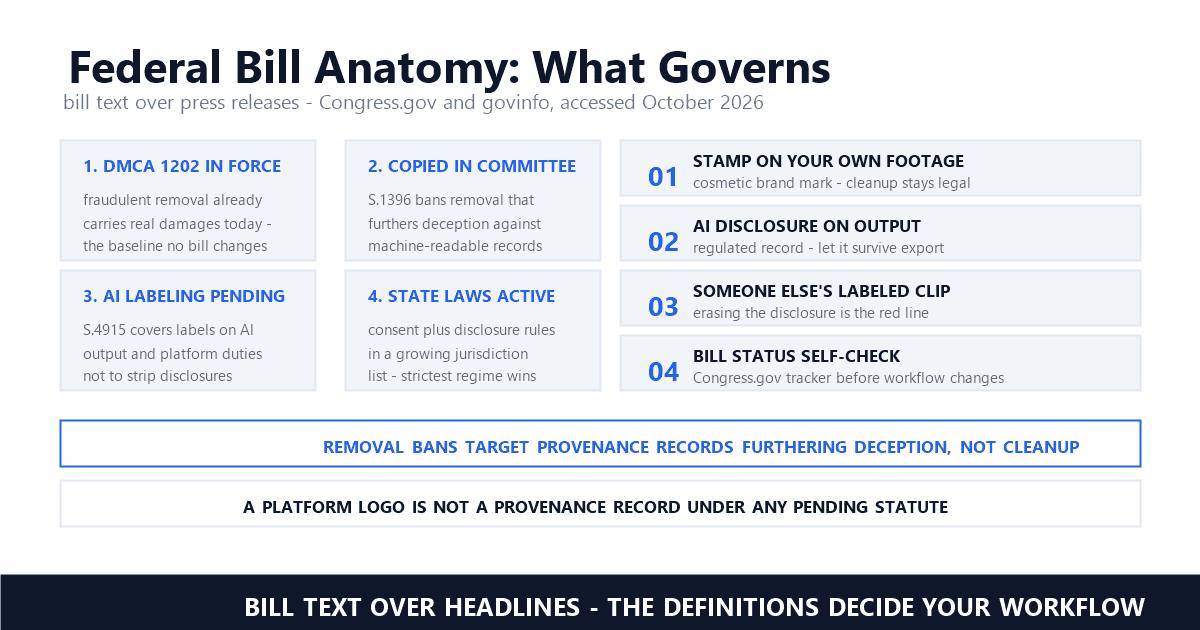
Our position as a removal product follows the mark's function. Zoom's overlay carries an email address, not copyright management information — the distinction we explain in 17 U.S.C. § 1202 does not attach to it the way it can to a generator's mark, and our four-question guide sorts ownership case by case. But function matters more than statute here: this is the meeting organizer's leak trace, and stripping it destroys the evidence trail the organizer built on purpose. What we do process are the owned-asset cases — creator footage with third-party overlays, the UGC handoff pattern and ad-compliance cleanups — and at volume that work is batch-shaped, documented in our processing walkthrough.
A short checklist before anything gets recorded. Admins decide whether the toggle is on, locked, or default-on, and whether hosts can override it. Hosts scheduling a session tick Require authentication to join and Add watermark that identifies the viewing participant. Participants should assume any capture they make is labeled with their own address.
For hosts, the scheduling flow is explicit in Zoom's article: under Security, select the Require authentication to join check box; under Options, click Show; then "Select the Add watermark that identifies the viewing participant check box" — Zoom Support. The same section names the failure case: if those check boxes cannot be selected, "you will need to contact your Zoom administrator to enable these features" — Zoom Support. Planning a webinar where slides are the product? The same discipline applies to course recordings — our Udemy guide covers the platform-side equivalent, where the mark belongs to the platform rather than to a viewer.
Zoom sits at one end of the spectrum we mapped from Veo to Sora's moving logo to agency client handoffs: the closer a mark is to identifying a person or an obligation, the less a remover has to offer — and the regulatory world is moving the same direction, with the EU AI Act pushing machine-readable disclosure marks onto synthetic content. Read the support pages in that light and the remover listings in the search results become what they are: answers to a question Zoom did not ask. The question Zoom asked is who is watching — and the answer is already tiled across the screen.
Does a Zoom recording have a watermark?
It depends on settings, and the two channels behave differently. If the account or host enabled the personal watermark, every authenticated viewer's screen shows their own email tiled across the shared content and video feeds — and any capture made from that view carries it. Recordings made directly through Zoom's local or cloud recording contain no audio watermark, per Zoom's own support article; the inaudible audio signature exists to tag external recordings made with third-party tools or separate microphones.
Who can turn the Zoom watermark off?
The account owner or admins, in the Zoom web portal under Account Management and Account Settings on the Meeting tab; group admins can do the same in Group Management. Individual users can toggle it for their own meetings under Settings, then Meeting, unless the option was locked at the group or account level — a grayed-out toggle means you need to ask your admin.
Can Zoom tell who leaked a recording?
Often, yes. The visual watermark stamps each viewer's own email across their view, so a leaked capture identifies the account that made it. For audio, Zoom's process is to contact Zoom Support with the Meeting ID, the date and time, and the recording file, which must include at least 2 minutes of audio; Zoom can then assist with determining which participant was responsible.
Last updated: October 2026
Zoom Support — Adding an image watermark (Official) (accessed October 2026)
Zoom Support — Adding audio watermark (Official) (accessed October 2026)
Zoom Support — Enabling and configuring authentication settings and profiles (Official) (accessed October 2026)
Zoom Support — Zoom screen sharing security (Official) (accessed October 2026)
Zoom Support — Contact Zoom Support (Official) (accessed October 2026)
Mark Ma is the founder and lead engineer at UnMark, where he leads the development of AI-powered video watermark removal technology. With over a decade of experience in computer vision, deep learning, and video processing, he has built production systems that process millions of frames per month across TikTok, Instagram Reels, and Google Veo content. His technical work focuses on motion-compensated watermark detection, spatial-temporal inpainting, and quality-preserving reconstruction for short-form vertical video. Before UnMark, Mark shipped computer vision infrastructure at scale for content moderation and ad compliance platforms. He writes this blog to document the real engineering, testing, and regulatory reasoning behind UnMark's processing pipeline — every test result, frame analysis, and benchmark published here is reproduced from actual production data, not synthetic examples. His goal is to give creators, brands, and regulators a verifiable technical reference for AI video watermark removal in 2026.